If you have ever copied photos from an iPhone to a Windows PC, you have probably run into a small but frustrating problem: the images simply won't open. Instead of the familiar thumbnail preview, you see a blank icon and a file ending in .heic that most of your favorite programs refuse to recognize. The good news is that you don't need to buy a paid program, download a bulky desktop app, or clutter your system with extra extensions to fix this. You can convert HEIC to JPG on Windows without installing software at all, and this guide walks you through exactly how to do it.
Below, you will learn what HEIC is, why Windows struggles with it, and the fastest, cleanest way to turn those files into universally compatible JPG images using nothing more than your web browser.
HEIC stands for High Efficiency Image Container. It is the file format Apple adopted as the default for photos taken on iPhones and iPads starting with iOS 11. The format is built on the HEIF (High Efficiency Image Format) standard and uses advanced HEVC compression to shrink file sizes dramatically while keeping image quality high.
In practical terms, a HEIC photo can be roughly half the size of an equivalent JPG without any visible drop in clarity. That is fantastic for saving storage space on your phone, where every gigabyte counts. The problem appears the moment those files leave Apple's ecosystem.
Windows did not support HEIC natively for years, and even on modern systems the support is inconsistent. Windows 10 and Windows 11 can sometimes display HEIC thumbnails, but only if the right codecs are present. The HEVC compression that makes HEIC so efficient relies on a separate video extension that often is not pre-installed, and even when previews work, many editing programs, email clients, content management systems, and websites still reject the format outright. JPG, on the other hand, has been the universal language of digital images for decades. Practically every device, app, browser, and printer on the planet can open a JPG without a second thought.
That compatibility gap is exactly why so many people search for a quick way to change HEIC to JPG on Windows.
You might wonder why anyone would go out of their way to avoid installing a program. There are several very good reasons.
First, many Windows users work on shared, school, or office computers where they simply don't have permission to install anything. An online tool sidesteps that restriction entirely.
Second, desktop converters can be bloated. Some come bundled with toolbars, trial offers, or background processes that slow your machine down. A few questionable "free" converters found online have even been flagged for adware. Avoiding installation removes that risk completely.
Third, an online converter works the same way on any machine. Whether you are on a brand-new Windows 11 laptop, an older Windows 10 desktop, or even a Chromebook borrowed from a friend, the process is identical. There is nothing to update, nothing to configure, and nothing left behind on your hard drive when you are done.
Finally, it is simply faster. You can have a JPG in your downloads folder in less time than it would take a typical installer to finish unpacking.
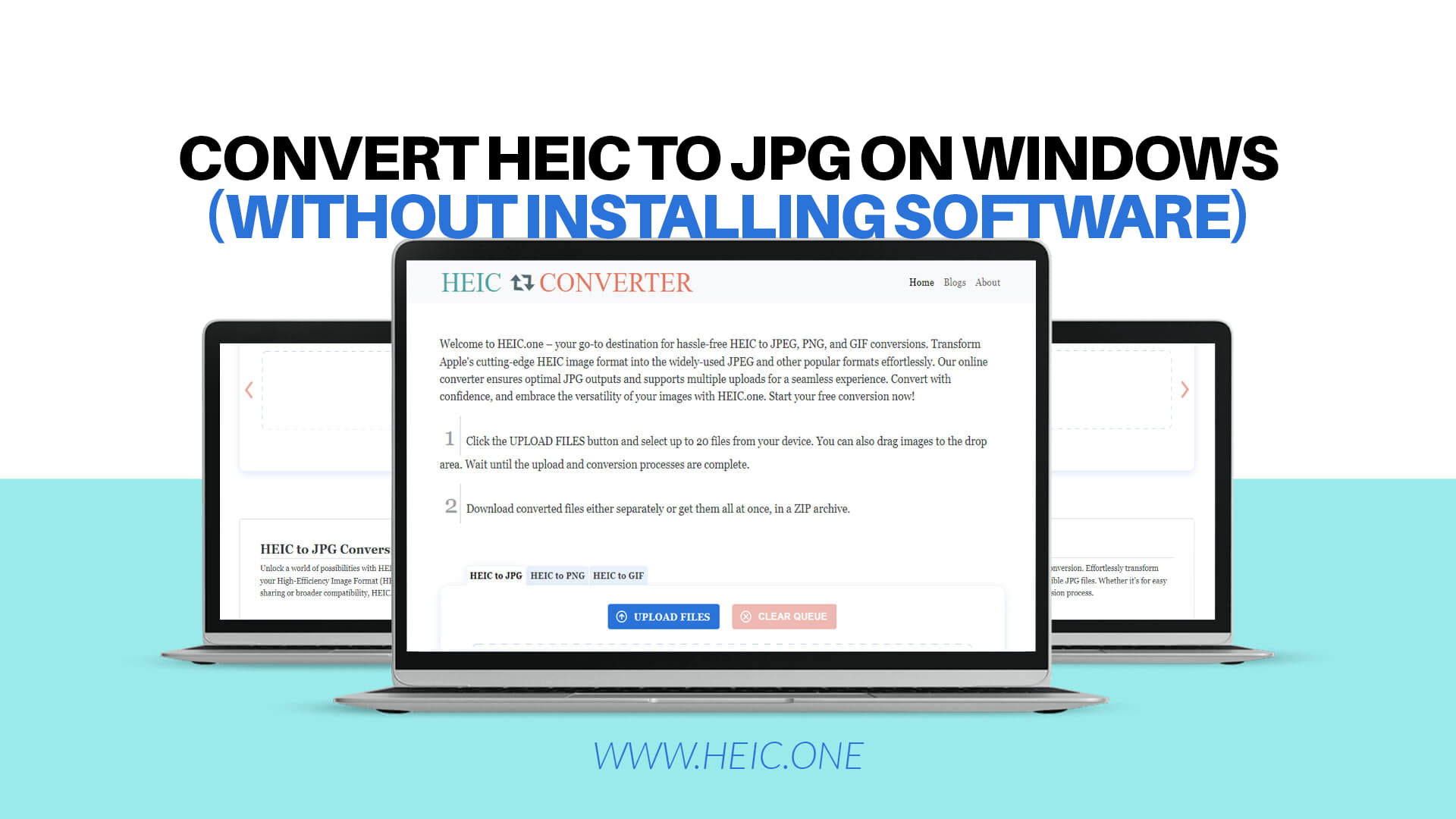
The most reliable way to convert HEIC to JPG on Windows without installing software is to use a dedicated browser-based converter. This is where HEIC.one shines. It is a free online tool built specifically for turning Apple's HEIC images into JPG, PNG, and GIF files, and it runs entirely in your browser. There is nothing to download and nothing to set up.
Here is the simple process:
Step 1: Open the converter. Launch any browser on your Windows PC, whether that is Chrome, Edge, Firefox, or Brave, and head to the HEIC.one homepage.
Step 2: Upload your HEIC files. Drag your photos directly onto the page, or click the upload button and browse to the folder where your images are stored. You can select a single picture or several at once.
Step 3: Choose JPG as your output. The tool is designed to produce clean, high-quality JPG images, so you get sharp results without manual fiddling.
Step 4: Convert and download. Within seconds, your freshly converted JPG files are ready. Click Download, and they land in your Windows downloads folder, ready to open in any app you like.
That's it. No installation, no account creation, no payment. If you want a deeper walkthrough of the browser-based approach, the guide on how to convert HEIC to JPG free online breaks the process down even further and covers a few helpful tips for getting the best output quality.
A single vacation can easily produce hundreds of HEIC photos, so converting them one by one is rarely practical. This is one of the biggest advantages of using a web-based tool over the manual Windows methods you may have read about elsewhere.
An online converter lets you upload a whole batch of images and process them together, which saves an enormous amount of time. Instead of opening each photo individually, saving it, and repeating the process dozens of times, you queue everything up in one go and download the entire set when it finishes. If you regularly deal with large folders of images, the dedicated tutorial on how to convert HEIC to JPG in bulk is worth bookmarking, because it explains how to handle big batches efficiently without overwhelming your browser or your connection.
Before you start a large batch, it is always smart to keep a copy of your originals. Copy the HEIC files to a separate folder or an external drive first. That way, if you ever want the smaller, space-saving HEIC versions back, or you simply want to re-convert at different settings, your source files are safe.
You will often see advice suggesting you use Microsoft Paint or the Photos app to convert HEIC files on Windows. These methods can work, but they come with an important catch that is easy to miss.
In theory, you can open a HEIC image in the Photos app or Paint and then choose "Save as" to export it as a JPG. The problem is that these apps frequently cannot read HEIC files until you first install the HEIF Image Extensions and, in many cases, the HEVC Video Extensions from the Microsoft Store. In other words, the supposedly "built-in" method usually requires you to install something after all. On some systems the HEVC extension is not free, and on locked-down work or school computers you may not be able to add it at all.
There is also the matter of speed. Even when the extensions are present, opening each image, navigating the save menu, picking the format, and saving has to be repeated for every single file. That is fine for one or two photos but painful for a folder full of them. This is precisely why a browser-based converter remains the cleanest answer for anyone who truly wants to avoid installing anything.
So while the Paint and Photos route is worth knowing about, it does not really live up to the promise of a no-install solution. A dedicated online converter does.
Converting existing photos solves today's problem, but you can also reduce how often you face it going forward. If the HEIC files are coming from your own iPhone, you have the option to make the phone capture photos in the more compatible JPG format from the start.
On your iPhone, open Settings, tap Camera, then tap Formats, and choose "Most Compatible" instead of "High Efficiency." From that point on, new photos are saved as JPG, which means they will open instantly on Windows without any conversion step. Keep in mind that this slightly increases the storage each photo uses, since JPG is less efficient than HEIC, but for many people the convenience is well worth it.
Of course, this only affects photos taken after you change the setting. For everything already sitting in your camera roll, conversion is still the way to go. If you would rather handle the conversion directly on the phone before transferring anything, the walkthrough on how to convert HEIC to JPG on iPhone explains the options available right inside iOS.
It is worth mentioning that this compatibility issue is not exclusive to iPhone owners. Some newer Android phones also capture images in HEIF or HEIC formats to save space, which can cause the same headaches when you move those files to a Windows computer. The conversion approach is identical, and if you are dealing with photos from an Android device, the dedicated guide on how to convert HEIC to JPG on Android covers the specifics for that platform. No matter where your HEIC files originated, a browser-based converter handles them all the same way.
This is a common and fair concern. JPG uses lossy compression, which technically means some image data is discarded during conversion. In practice, however, the difference is almost always invisible to the human eye. A good converter preserves the detail, color, and sharpness of your original photo so well that you would struggle to tell the JPG apart from the HEIC at normal viewing sizes.
For everyday use, sharing photos with friends and family, posting online, printing, or storing in an album, the quality of a converted JPG is more than sufficient. The trade-off is a slightly larger file size in exchange for a format that works absolutely everywhere. For the vast majority of people, that is a trade worth making, and the small size increase is rarely noticeable on a modern hard drive.
Whenever you process personal photos, privacy matters. Family pictures, travel memories, and personal documents deserve to be handled with care. When choosing any online converter, it is wise to use a reputable, purpose-built tool rather than a random site you have never heard of.
A focused converter like HEIC.one exists for one job, turning HEIC images into common formats quickly and cleanly, which is exactly the kind of tool you want for the task. As a general habit, always keep a backup of your original files before converting anything, download your results promptly, and you will have a smooth, worry-free experience every time.
Converting HEIC to JPG on Windows used to feel like a chore reserved for people willing to wrestle with codecs, store extensions, and clunky desktop programs. Today, it is genuinely effortless. You do not need to install a single thing. You simply open your browser, upload your photos, pick JPG, and download the results, all in a matter of seconds.
Whether you are dealing with a couple of pictures from a recent trip or an entire library of HEIC files that refuse to cooperate with your Windows apps, a free online converter is the fastest, safest, and most convenient route. The format your photos were captured in no longer has to dictate where and how you can use them.
Ready to free your images from the HEIC bottleneck? Open HEIC.one and convert your first batch today, no software, no cost, and no hassle.