If you own an iPhone or iPad, you have probably seen files ending in .heic on your phone or computer. You might have tried to open one of them on a Windows PC or share it with a friend, only to find that it simply does not work. The image just will not open. That can be really frustrating, especially when the photo is something important.
This guide explains everything you need to know about HEIC files — what they are, why Apple uses them, and most importantly, how to convert them to PNG, JPG, or GIF so that they work on any device, any browser, and any platform without any trouble.
HEIC stands for High Efficiency Image Container. It is the file format that Apple introduced with iOS 11 back in 2017. When you take a photo on a modern iPhone or iPad, the camera saves it as a .heic file by default.
The idea behind HEIC is smart. It stores photos at very high quality while using less storage space on your device. In simple terms, a HEIC photo can look just as sharp and detailed as a JPEG photo, but the file size is often about half as big. For a phone that takes dozens or hundreds of photos every week, that difference in file size adds up quickly.
Apple chose the HEIC format because it supports a wide range of features that older formats like JPEG do not handle as well. HEIC files can store HDR images, wide color information, transparency layers, and even short image sequences. It was built to be the future of mobile photography.
So why is it a problem?
The problem is that the rest of the world has not fully caught up. Windows does not open HEIC files without a special codec or plugin. Most websites do not accept HEIC uploads. Many email clients struggle with them. Android phones do not support them natively. Older software on Mac or PC often cannot read them at all.
This means that even though HEIC is a technically better format, it creates real compatibility issues in everyday situations. Converting HEIC to a more common format like JPG or PNG solves those issues instantly.
Here are some of the most common situations where converting a HEIC file becomes necessary.
Sharing photos with people who use Windows or Android. Not everyone has an Apple device. When you send a .heic file to someone using a Windows laptop or an Android phone, there is a good chance they will not be able to open it. Converting to JPG or PNG means the photo opens without any issues on their end.
Uploading photos to websites. Most websites that accept image uploads — social media platforms, online stores, job applications, travel booking sites — expect JPG or PNG. HEIC is not a standard web format, and many upload forms will reject it or show an error.
Editing photos in software. If you use Photoshop, Canva, Lightroom, or most other popular photo editors, HEIC support can be limited or nonexistent depending on the version you have. Exporting your photos as PNG or JPG first means you can edit them without any technical issues.
Attaching photos to emails and documents. Emailing a HEIC photo to a colleague or attaching it to a Word document or PDF can lead to the image not displaying properly for the person receiving it. A converted JPG or PNG will embed and open correctly every time.
Using photos on websites you manage. If you run a blog, an online business, or any kind of website and you want to use photos taken on your iPhone, you will need them in a web-safe format. PNG and JPG are the standard options that every browser handles perfectly.
Archiving and storing photos long-term. If you are backing up family photos or important images and you want them to remain accessible for many years, JPG and PNG are safer choices. They are universal formats that any future software will almost certainly support.
In all of these situations, converting HEIC to another format is the simplest solution. And the easiest way to do that is with HEIC.ONE.
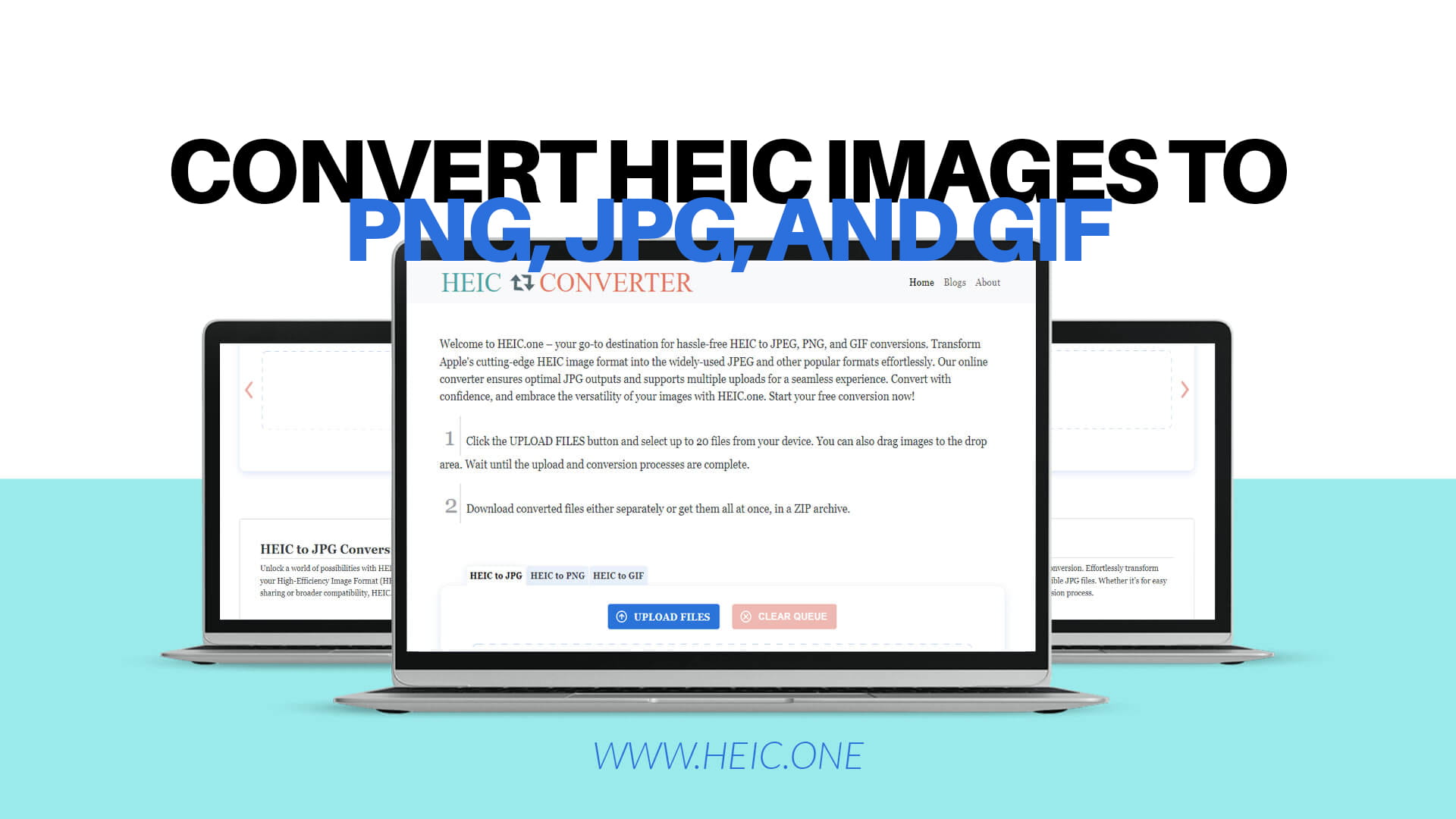
HEIC.ONE is a free online tool built specifically to convert HEIC image files into other popular formats. You do not need to download any software, install any app, or create an account. You simply visit the site, upload your files, choose your output format, and download the results.
The tool supports conversion to three widely used formats: JPG (also written as JPEG), PNG, and GIF. Each of these formats has its own strengths, and HEIC.ONE gives you the flexibility to choose the one that works best for your situation.
The converter is designed to be straightforward. It works directly in your browser, which means it runs on any device — Windows, Mac, iPhone, Android, or anything else. There is no complicated interface to learn. You can convert a single photo or upload multiple files at once, which saves a lot of time when you have a batch of photos to process.
HEIC.ONE focuses on producing good quality output. Converting an image always involves some processing, and the goal of the tool is to make sure the resulting JPG, PNG, or GIF looks as close to the original as possible.
Before you convert your HEIC files, it helps to understand the differences between the three formats available on HEIC.ONE. Choosing the right format for your needs makes a real difference.
JPG is the most common image format in the world. It is supported by every device, every browser, every app, and every operating system without exception. If you are not sure which format to use, JPG is almost always a safe and sensible choice.
JPG uses compression to reduce file size. This compression is "lossy," which means a small amount of image quality is sacrificed to keep the file size manageable. For most photos — especially ones taken with a smartphone — the quality difference is barely noticeable. JPG photos look great on screen and in print.
JPG is ideal for photographs, travel shots, portraits, food photos, and any image with lots of colors and gradients. It handles natural scenes and complex color information very well.
The one thing JPG does not support is transparency. If your HEIC image has a transparent background, that information will be lost when you convert to JPG.
PNG stands for Portable Network Graphics. It is another universally supported format, and it has one major advantage over JPG: it is lossless. This means PNG compression does not reduce image quality at all. Every pixel in the converted PNG image looks exactly the same as the original.
PNG also supports transparency. If your image has a transparent or semi-transparent background, PNG will preserve that correctly.
The trade-off is file size. PNG files tend to be larger than JPG files for the same image. For detailed photographs with lots of complex color, the PNG file can be quite large.
PNG works best for screenshots, graphics, logos, illustrations, text-heavy images, and any image where preserving every detail matters. It is also the preferred format for images that will be edited further, since there is no quality loss each time you save.
GIF is one of the oldest image formats still in common use. It is best known today for short animated images — the looping clips you see on social media and in messaging apps. In terms of still images, GIF has significant limitations. It only supports 256 colors, which means detailed photographs will look noticeably lower quality when converted to GIF.
Where GIF still holds value is for simple graphics, icons, and especially for creating short animations. If you have a HEIC image that is a simple graphic with limited colors and you need to share it in a context where GIF is expected, converting to GIF makes sense.
For most photos taken on an iPhone, JPG or PNG will give much better results than GIF.
The conversion process on HEIC.ONE is simple and fast. Here is how it works.
Step one: Go to HEIC.ONE. Open your browser on any device and visit the site. There is no login required and no software to install. The converter loads directly in your browser.
Step two: Upload your HEIC files. You can upload files in a couple of ways. You can click the upload button and browse to your HEIC files on your device. If your files are stored in iCloud or in a folder on your desktop, just navigate to them. You can also drag and drop the files directly onto the upload area, which is faster when you have several files to convert.
HEIC.ONE supports uploading multiple files at the same time, so if you have a whole album of HEIC photos to convert, you do not need to do them one by one.
Step three: Choose your output format. Select whether you want the output in JPG, PNG, or GIF. Think about what you need the images for. If you are going to use them on a website or share them via email, JPG is a great choice. If quality and detail are the priority or you need transparency, go with PNG.
Step four: Start the conversion. Click the convert button and let HEIC.ONE process your files. The conversion happens quickly. For most files, it takes only a few seconds.
Step five: Download your converted images. Once the conversion is complete, you can download your new JPG, PNG, or GIF files. They are ready to use immediately — share them, upload them, print them, or edit them however you need.
The whole process from start to finish typically takes less than a minute.
One of the most useful things about HEIC.ONE is the ability to handle multiple files at once. If you have recently moved photos from your iPhone to your computer and found a folder full of .heic files, converting them one at a time would take ages.
With HEIC.ONE, you can select all of them and upload them together. The tool processes them all and gives you a set of converted files ready to download. This saves a lot of time and effort, especially if you are dealing with a large batch of photos from a trip or an event.
Batch conversion also means you do not have to go back and forth between your photo library and the converter. Upload everything at once, choose your format, and you are done.
This is a fair question. Since Apple went to the trouble of developing HEIC, is it actually a better format?
In terms of technical capability, yes. HEIC can store more color information, supports HDR, handles transparency, and produces smaller file sizes for the same visual quality. If every device and platform supported HEIC natively, it would probably become the dominant format for photos.
But in the real world, the best format is the one that actually works wherever you need it. JPG has been around since the early 1990s and is supported absolutely everywhere. No device, no software, no website is ever going to reject a JPG file because it does not understand the format.
For photos you plan to keep only on your Apple devices, HEIC is fine. For anything you want to share, upload, edit in third-party software, or use on a website, JPG or PNG will work without any friction.
HEIC.ONE bridges that gap. You keep the original HEIC files on your device with all their quality and efficiency, and you convert them when you need a version that the rest of the world can use.
Will converting HEIC to JPG reduce the quality of my photo?
There will be a very small reduction in quality because JPG uses lossy compression. However, for most photos viewed on screen or shared online, the difference is not visible. If you need perfect lossless quality, convert to PNG instead.
Can I convert HEIC to PNG without losing transparency?
Yes. PNG supports transparency, and HEIC.ONE will preserve transparency information when you convert to PNG.
Do I need to install anything to use HEIC.ONE?
No. The converter runs entirely in your browser. There is nothing to download or install.
Is there a limit on how many files I can convert?
HEIC.ONE supports multiple file uploads, which makes it easy to convert batches of photos without needing to go one at a time.
Can I use HEIC.ONE on my iPhone or Android phone?
Yes. Because the tool runs in the browser, it works on any device with a modern web browser. You can convert photos directly from your phone if needed.
What happens to my photos after I upload them?
HEIC.ONE is designed to be a simple, secure conversion tool. Your photos are processed to produce the output files, and you download the results.
A few simple tips will help you get the most out of your conversions.
Choose PNG when quality matters most. If you are converting a photo that will be printed, used in professional work, or edited further, PNG gives you lossless quality. The file size will be bigger, but there is no quality loss.
Choose JPG for sharing and uploading. For social media, email, and website uploads, JPG offers the best balance of quality and file size. Files are smaller and upload faster.
Convert the original HEIC files. If possible, always convert the original photos rather than copies that have already been processed or compressed. Starting with the best quality source gives you the best output.
Keep your HEIC originals. After converting, do not delete your original .heic files right away. Keep them as your master copies and use the converted files for sharing. If you ever need a higher quality version in the future, you still have the original.
Use batch upload for large folders. If you have many files to convert, upload them all at once rather than doing them individually. It is faster and keeps all your converted files together in one download.
There are a few different ways to convert HEIC files. Some operating systems have built-in options, and there are various apps and tools available. So why use HEIC.ONE?
The biggest reason is simplicity. There is no software to install, no account to create, and no complex settings to figure out. You go to the site, upload your files, and download the results. It takes about a minute.
It also works on any device. Whether you are on a Windows laptop, a MacBook, an iPhone, or an Android tablet, the converter works the same way in the browser. You do not need a specific operating system or a specific app.
The support for all three major output formats — JPG, PNG, and GIF — means you have options. Most people will use JPG or PNG, but having GIF available covers situations where that format is needed.
Multiple file upload support means you are not stuck converting one photo at a time. This matters a lot when you have a folder of hundreds of HEIC photos from your camera roll.
And it is free. You do not need to pay, subscribe, or sign up to start converting.
If you are new to all of this, you might be wondering how HEIC files get onto your Windows computer or laptop in the first place.
The most common way is by transferring photos from an iPhone or iPad. When you plug your iPhone into a Windows PC using a USB cable, the photos on the phone are accessible through File Explorer. If your iPhone is set to save photos in HEIC format (which is the default for modern iPhones), the files you see will have the .heic extension.
Another common route is through cloud services. If you use iCloud Photos and access your photos from a Windows computer through a browser or the iCloud app, you may download HEIC files directly to your PC.
AirDrop between Apple devices transfers the original file format, so if you send a photo from your iPhone to your Mac via AirDrop, the file on your Mac will also be HEIC.
In any of these cases, converting with HEIC.ONE gives you files that work on any platform.
More and more people are running into HEIC file issues as iPhones become more common. Apple has sold hundreds of millions of iPhones in recent years, and the default camera setting on all of them is to save photos in HEIC format. That means the number of .heic files in circulation is growing every day.
At the same time, much of the software, websites, and devices that people use outside the Apple ecosystem still do not support HEIC. This gap is not going away quickly. Even though some platforms are adding HEIC support, the reality is that JPG and PNG remain the formats that work everywhere without exception.
As long as that gap exists, tools like HEIC.ONE fill an important role. They make it easy for anyone — regardless of their technical knowledge — to convert their photos into formats that work everywhere.
If you have HEIC files that you need to open, share, or use somewhere, the solution is simple. Visit HEIC.ONE, upload your files, choose your output format, and download the converted images. The whole process takes less than a minute.
There is no cost, no account required, and no software to install. Whether you need to convert a single photo or an entire album, HEIC.ONE handles it quickly and produces clean, high-quality output in JPG, PNG, or GIF.
Your photos were taken to be seen and shared. Do not let a file format stand in the way of that. Start your free conversion at HEIC.ONE today.