If you own an iPhone or any Apple device, you have probably come across files ending in .heic. These files are photos taken by your Apple camera. Apple introduced the HEIC format a few years ago because it saves high-quality photos in a smaller file size. That sounds great, right? And it is — but only if you are using Apple devices.
The real problem starts when you try to share those photos with someone who uses a Windows computer, an Android phone, or any other non-Apple device. They often cannot open HEIC files at all. Even many websites and apps do not support HEIC uploads. This is where an online HEIC converter becomes your best friend.
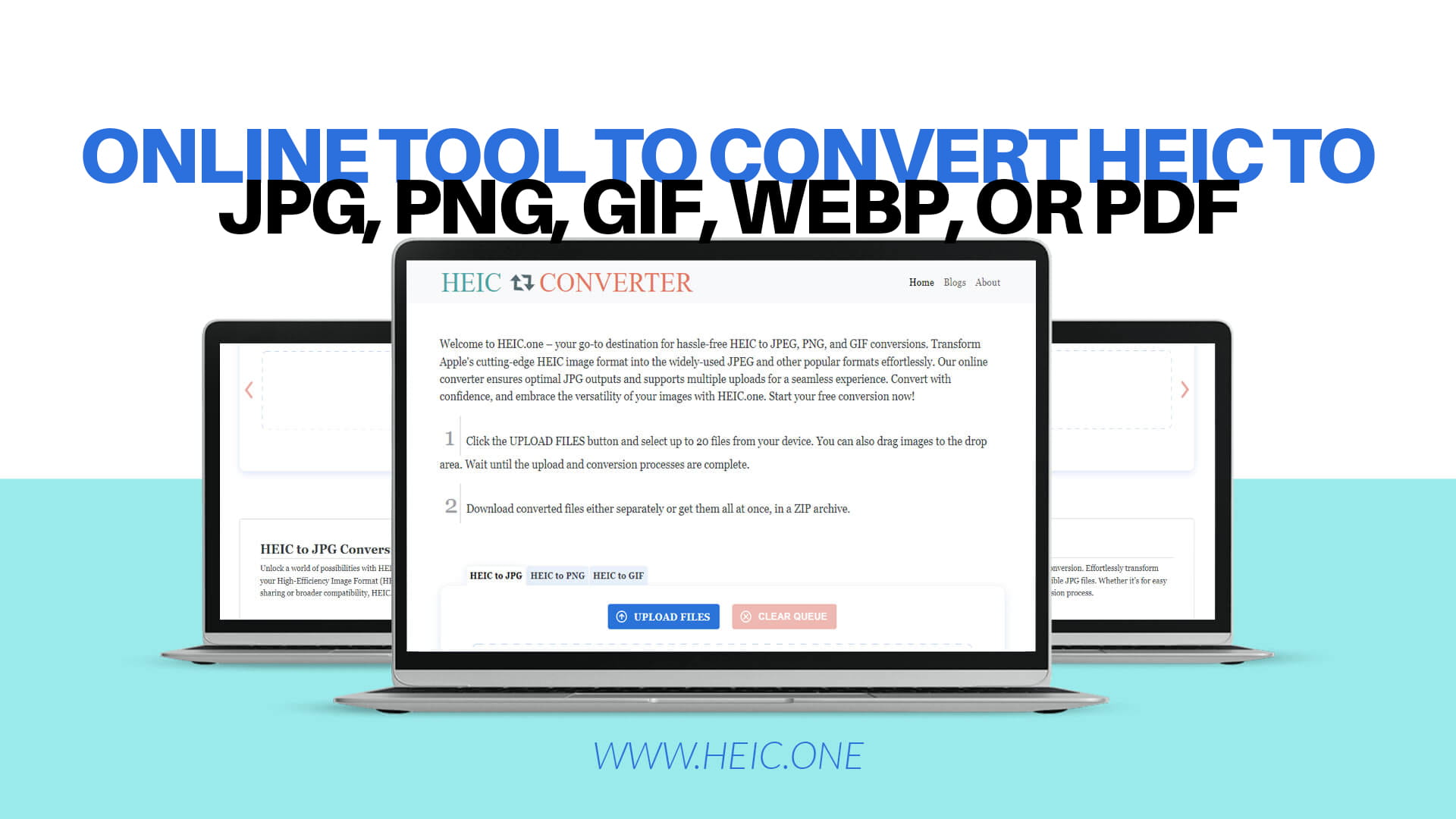
HEIC.ONE is a free online tool that lets you convert your HEIC photos into formats that everyone can open — like JPG, PNG, GIF, WebP, or even PDF. You do not need to download any software. You do not need to create an account. You just visit the website, upload your photos, and download the converted files. It is that simple.
Before we talk more about how to convert HEIC files, let us understand what HEIC actually is.
HEIC stands for High Efficiency Image Container. Apple started using this format with iOS 11 back in 2017. The idea was simple — store better photos without taking up too much space on your iPhone. A HEIC photo can be almost half the size of a regular JPG photo, but the image quality stays the same or even looks better.
The technology behind HEIC is called HEVC, which stands for High Efficiency Video Coding. This is the same technology used to compress videos. Apple was clever to use this for photos too. But clever does not always mean widely accepted.
Most of the world still uses JPG as the standard photo format. JPG has been around since the early 1990s and works on almost every device, every operating system, and every website on the internet. PNG is great for images that need a transparent background. GIF is used for simple animations. WebP is a modern format supported by most web browsers. PDF is used for documents and presentations.
HEIC works beautifully within the Apple world. But the moment you step outside that world, things get complicated. That is exactly why so many people search every day for a way to convert HEIC to JPG or other common formats.
There are many tools on the internet that claim to convert HEIC files. But not all of them are reliable, fast, or easy to use. HEIC.ONE was built with one goal in mind — to make HEIC conversion as simple and smooth as possible for everyone.
Here is why people trust and love HEIC.ONE:
It is completely free. You do not need to pay anything to use HEIC.ONE. No subscriptions, no hidden charges, no surprise fees at the last step. The tool is free for everyone, every time.
No software to download. Some HEIC converters ask you to install a program on your computer. That takes time, uses storage, and sometimes comes with unwanted extras. HEIC.ONE works entirely in your browser. Open it, use it, done.
Multiple file uploads. If you have more than one HEIC photo to convert, HEIC.ONE has you covered. You can upload multiple files at the same time and convert them all in one go. This saves a lot of time, especially when you are dealing with photos from a vacation or an event.
Multiple format options. Not everyone needs the same output format. Some people need JPG for sharing on social media. Others need PNG for design work. Some want PDF for a presentation or document. HEIC.ONE gives you the choice to convert to JPG, PNG, GIF, WebP, or PDF — all from one place.
Fast and reliable. Nobody wants to wait forever for a file to convert. HEIC.ONE is built to process your files quickly so you can get back to what you were doing without any long waits.
Works on all devices. Whether you are on a Mac, Windows PC, Android phone, or another iPhone, HEIC.ONE works the same way everywhere. As long as you have a browser and an internet connection, you are good to go.
Converting a HEIC file to JPG with HEIC.ONE is so easy that anyone can do it — even if you are not tech-savvy. Here is a simple step-by-step guide:
Step One — Visit HEIC.ONE. Open your preferred browser and go to HEIC.ONE. The homepage is clean and easy to understand. You will immediately see where to upload your files.
Step Two — Upload your HEIC files. Click on the upload button or simply drag and drop your HEIC photos into the upload area. You can select one photo or many photos at the same time. HEIC.ONE supports multiple uploads so you do not have to do them one by one.
Step Three — Choose your output format. Select the format you want to convert to. If you want a JPG, select JPG. If you need PNG, select PNG. The same goes for GIF, WebP, or PDF. The choice is yours.
Step Four — Start the conversion. Click the convert button and let HEIC.ONE do its work. The tool will process your files quickly. Depending on the size and number of files, this usually takes just a few seconds.
Step Five — Download your converted files. Once the conversion is done, you can download your files. You will get high-quality JPG, PNG, GIF, WebP, or PDF files that are ready to use, share, or upload anywhere.
That is all there is to it. No technical knowledge required. No long process. Just upload, choose, convert, and download.
JPG is great for most photos, but sometimes PNG is the better option. Let us talk about when you would choose PNG over JPG.
PNG stands for Portable Network Graphics. It is a lossless format, which means when you save a photo as PNG, no quality is lost. JPG, on the other hand, compresses images and can sometimes lose a tiny bit of quality in the process. For everyday photos, this difference is barely noticeable. But for images used in design, logos, or anything where sharpness matters, PNG is often preferred.
The biggest advantage of PNG is that it supports transparent backgrounds. If you have an image where you want the background to be invisible — for example, a product photo or a logo — PNG is the format you need. JPG does not support transparency.
So if you are converting HEIC photos for use in design projects, presentations, or any situation where you need a clean, sharp, transparent background, HEIC.ONE lets you convert HEIC to PNG with the same simple steps described above.
GIF is one of the oldest and most loved formats on the internet. Everyone has seen GIFs — those looping animated images that make you laugh, react, or express emotions without words. But GIFs are not just for animation. A regular, non-animated GIF can also be useful in certain situations.
If you have a HEIC photo that you want to convert to GIF for use on a website, in a chat app, or for any creative project, HEIC.ONE makes it easy. Just upload your HEIC file, select GIF as the output format, and download your converted image. It is quick and straightforward.
While GIF does have a lower colour range compared to JPG or PNG, it is still a widely supported format across the web and perfect for many use cases.
WebP is a newer image format developed by Google. It is designed to give you smaller file sizes with high image quality. WebP is supported by all major browsers including Chrome, Firefox, Safari, and Edge. Many websites now use WebP images because they load faster, which improves the overall performance of the website.
If you are a blogger, web designer, or developer, converting your HEIC photos to WebP can help your website load faster and rank better on search engines. Google pays attention to page speed, and using WebP images is one smart way to keep your website fast.
HEIC.ONE lets you convert HEIC to WebP just as easily as any other format. This makes it a great tool not just for everyday users but also for professionals who work on websites and digital content.
Sometimes you need your photos in a PDF format. Maybe you are putting together a report, a portfolio, a presentation, or a document that includes images. PDF is the universal format for documents and is accepted everywhere — from offices to schools to government offices.
With HEIC.ONE, you can convert your HEIC photos to PDF without any hassle. Instead of going through multiple steps or using a separate document tool, everything happens in one place. Upload your HEIC files, select PDF as the output format, and your photos become a clean, ready-to-share PDF document.
This feature is especially useful for photographers who want to share a collection of photos in a single document, or for anyone who needs to submit images as part of a formal document.
One of the most common reasons people look for HEIC conversion tools is that Windows does not natively support HEIC files. If you have a Windows computer and someone sends you a HEIC photo from their iPhone, you might see a blank icon or an error message when you try to open it.
Microsoft has a paid extension for Windows that adds HEIC support, but not everyone knows about it or wants to pay for it. And even if you install it, the HEIC file still might not work in all Windows programs.
The easiest and fastest solution is to convert the HEIC file to JPG or another format using HEIC.ONE. Once converted, the photo will open perfectly in any Windows application — Paint, Photoshop, Word, or even just the standard Photos app.
Android phones do not support HEIC files either. If someone sends you a HEIC photo and you try to open it on your Samsung, Google Pixel, or any other Android phone, chances are it will not open.
Messaging apps, email apps, and social media platforms on Android often struggle with HEIC files. Even if you download the file, your gallery app might not be able to display it.
By converting HEIC to JPG using HEIC.ONE, you can open, view, share, and store the photo without any issues on your Android device. And since HEIC.ONE works in a browser, you can use it directly from your Android phone — no app download needed.
You might have noticed that when you try to upload a HEIC photo to Instagram, Facebook, Twitter, or other social media platforms, it sometimes does not work. Some platforms have started to accept HEIC files in recent years, but many still do not fully support them.
Even when a platform does accept HEIC uploads, it might automatically convert them in the background, sometimes resulting in lower quality than if you had uploaded a proper JPG to begin with. By converting your HEIC photos to JPG before uploading, you stay in control of the quality and make sure your photos look their best on any platform.
HEIC.ONE is the perfect tool for social media users who take photos on their iPhone and want to post them online without any trouble.
Sending HEIC photos over email is another common problem. If you attach a HEIC file and send it to someone who does not use Apple devices, they might not be able to open it. This can be frustrating, especially in professional settings.
Imagine sending a client a photo of a finished product, a property listing, or a delivered project — only for them to come back and say they cannot open the file. It looks unprofessional and wastes time.
A quick conversion with HEIC.ONE before sending solves this problem completely. Convert your HEIC photos to JPG, attach them to your email, and know that anyone, anywhere can open them without any issue.
One question many people have when using an online converter is whether the image quality will suffer. This is a fair concern. Nobody wants to convert a beautiful, high-resolution photo only to end up with a blurry or pixelated result.
HEIC.ONE takes image quality seriously. The conversion process is designed to maintain as much of the original image quality as possible. When you convert from HEIC to JPG, the output is a high-quality JPG that looks virtually identical to the original HEIC photo.
HEIC files store a lot of image data, and the conversion process makes sure that data is carried over into the new format as cleanly as possible. The result is a photo that looks sharp, clear, and true to the original.
A very important concern when using any online tool that involves uploading personal photos is privacy. You should always know what happens to your files after you upload them.
HEIC.ONE respects your privacy. Your files are processed for conversion and are not stored, shared, or used in any way after the conversion is complete. You can use the tool with confidence knowing that your personal photos remain private.
This is especially important for photos that may include personal or sensitive content — family pictures, identification documents, or professional images. With HEIC.ONE, you can convert with peace of mind.
Even though using HEIC.ONE is very straightforward. Here are a few tips to make sure you always get the best possible results:
Choose the right format for your needs. Think about where you will be using the converted photo before selecting the output format. For general use and sharing, JPG is almost always the best choice. For design and images with transparent backgrounds, go with PNG. For websites and blogs, WebP gives you smaller file sizes and faster loading. For documents and presentations, PDF is the way to go.
Check your output quality. After downloading your converted file, open it and take a look to make sure it looks exactly how you expected. HEIC.ONE delivers high-quality results, but it is always a good habit to do a quick check.
Batch convert when possible. If you have many HEIC photos to convert, upload them all at once instead of doing them one by one. HEIC.ONE supports multiple uploads, and this will save you a lot of time.
Convert before sharing. Whether you are sending photos by email, uploading to social media, or sharing via messaging apps, always convert your HEIC files first. This makes sure the person on the other end can open and view your photos without any problems.
HEIC.ONE is designed for everyone. You do not have to be a tech expert or a professional photographer to use it. Here are just a few examples of people who can benefit from this tool:
iPhone and iPad users who take photos and want to share them easily with friends, family, or coworkers on non-Apple devices.
Windows users who receive HEIC files and cannot open them on their PC.
Android users who want to view or use photos taken on an Apple device.
Bloggers and content creators who need to upload photos to their website and want them in a web-friendly format like JPG or WebP.
Graphic designers who receive HEIC files from clients and need to convert them to PNG or JPG before working on them in design software.
Business professionals who need to share product photos, property images, or project documentation in a universally accepted format.
Students who want to include photos in assignments or presentations without running into compatibility issues.
No matter who you are or what you use the tool for, HEIC.ONE makes the process simple and stress-free.
There are many HEIC converters available online. So what makes HEIC.ONE different and better?
First, it is built with the user experience in mind. The design is clean and clutter-free. You are not bombarded with ads, pop-ups, or confusing options. Everything is laid out simply so you can get your conversion done and move on.
Second, HEIC.ONE supports more output formats than many other tools. While some converters only support JPG, HEIC.ONE gives you five options — JPG, PNG, GIF, WebP, and PDF. This versatility means you do not need to go looking for a different tool based on your output needs.
Third, the conversion quality is excellent. The tool is built to produce the best possible output from your HEIC files, maintaining image sharpness and clarity throughout the process.
Fourth, it is truly free. Some converters start out seeming free but then ask you to pay when you try to download your file. HEIC.ONE does not do that. It is free from start to finish, every time.
Finally, it supports batch processing. Many free converters only let you convert one file at a time. HEIC.ONE lets you upload and convert multiple files in one session, which is a huge time-saver.
HEIC is a great format for storing photos on Apple devices. But the moment you need to share, upload, or use those photos outside of the Apple world, things can get complicated. The easiest, fastest, and most reliable solution is to convert your HEIC files to a universally accepted format like JPG, PNG, GIF, WebP, or PDF.
HEIC.ONE is the online tool that makes this conversion effortless. It is free, fast, secure, and incredibly easy to use. Whether you are converting one photo or a hundred, for personal use or professional work, HEIC.ONE has everything you need in one simple place.
You do not need to be tech-savvy. You do not need to download anything. You just need a browser and your HEIC files. In just a few clicks, your photos will be in the perfect format for any situation.
Head over to HEIC.ONE right now and start your free HEIC conversion today. It only takes a few seconds to go from a HEIC file that nobody can open to a JPG, PNG, GIF, WebP, or PDF that works perfectly everywhere. Give it a try — and never worry about HEIC compatibility again.