If you own an iPhone or iPad, you have probably come across HEIC files at some point. You take a photo, transfer it to your computer or share it with someone, and suddenly it will not open. The image looks fine on your Apple device but everywhere else it just does not work. That is the HEIC problem in a nutshell.
The good news is that converting HEIC to PNG does not have to be complicated. You do not need to install software, pay for a subscription, or sit through advertisements. There are free online tools that handle everything in seconds. The challenge is finding one that actually works well without any hidden catch.
This article covers everything you need to know about HEIC files, why PNG is often the better format to use, and which converter gives you the smoothest experience without wasting your time.
HEIC stands for High Efficiency Image Container. Apple started using this format by default on iPhones and iPads back in 2017 with iOS 11. The idea behind it was smart — HEIC files are roughly half the size of JPEG files while keeping the same or better image quality.
So if you shoot a hundred photos on your iPhone, they take up less space on your device when stored as HEIC. That is a real benefit when you are trying to keep your phone storage from filling up every few weeks.
But the format has one major weakness. It is not universally supported. Windows used to have problems opening HEIC files without extra plugins. Many websites do not accept HEIC uploads. Older software, whether for photo editing, document creation, or sharing, often cannot read HEIC at all. Even some Android devices struggle with it.
Apple built HEIC for Apple devices. Outside that world, it causes headaches.
You might be wondering why PNG and not JPEG. Both are widely supported, and JPEG is actually more common. But PNG has some advantages that make it the right choice in certain situations.
PNG uses lossless compression. That means when you save an image as PNG, no quality is lost. Every pixel stays exactly as it was in the original. JPEG, by contrast, uses lossy compression, which means it removes some image data to make the file smaller. Usually you cannot see the difference with the naked eye, but if you are working with an image in a photo editor, applying filters, or saving it multiple times, that quality loss adds up.
If you are converting screenshots, graphics, logos, or images with text in them, PNG will always look sharper. The edges stay clean. There is no blurring or pixelation around text or fine details.
PNG also supports transparency. If your image has a transparent background, PNG will preserve it. JPEG cannot do that at all — it fills transparent areas with white.
For web use, PNG is the standard for anything that needs to look crisp. Graphic designers almost always prefer PNG when they need a clean, high-quality image file.
So yes, there are cases where JPEG is perfectly fine. But PNG is the smarter choice when quality matters.
Before getting into the best converter, it helps to understand why so many people are searching for one in the first place.
Windows Users Can Not Open HEIC Files
Unless you have installed the HEIC codec from the Microsoft Store, Windows cannot open HEIC photos. Many people do not know this until they transfer photos from an iPhone and find that nothing opens them. Windows Photo Viewer just shows a blank or an error.
Uploading HEIC to Websites Fails
Most websites only accept JPEG, PNG, GIF, or WebP uploads. If you try to upload a HEIC file to a social media profile, a job application form, an email attachment, or an online store, you will often get an error message saying the file type is not supported.
Editing Software Does Not Recognize HEIC
A lot of popular software like older versions of Photoshop, Microsoft Word, Google Slides, and basic image editors cannot open HEIC files directly. You need to convert first before you can edit.
Sharing HEIC With Non-iPhone Users Causes Issues
When you send a HEIC photo to someone who does not use an Apple device, they may not be able to open it. This is a common frustration when sharing photos with family or friends who use Android or Windows.
All of these problems go away once you convert to PNG.
Not all converters are created equal. Some are slow. Some add watermarks to your converted images. Some are loaded with pop-up ads. Some require you to create an account. Others only let you convert one file at a time.
Here is what a good converter should offer:
It should be completely free to use without any hidden fees or paywalls. It should work directly in your browser without requiring any software download or app installation. It should support multiple file uploads so you can convert a batch of images at once without doing them one by one. It should deliver fast conversion without making you wait several minutes for each file. It should not compress or reduce your image quality during the conversion process. It should not display intrusive advertisements that slow the page down or make the experience frustrating. And it should be safe — meaning your uploaded files are not stored or shared.
When you find a converter that checks all of those boxes, the experience is smooth and stress-free.
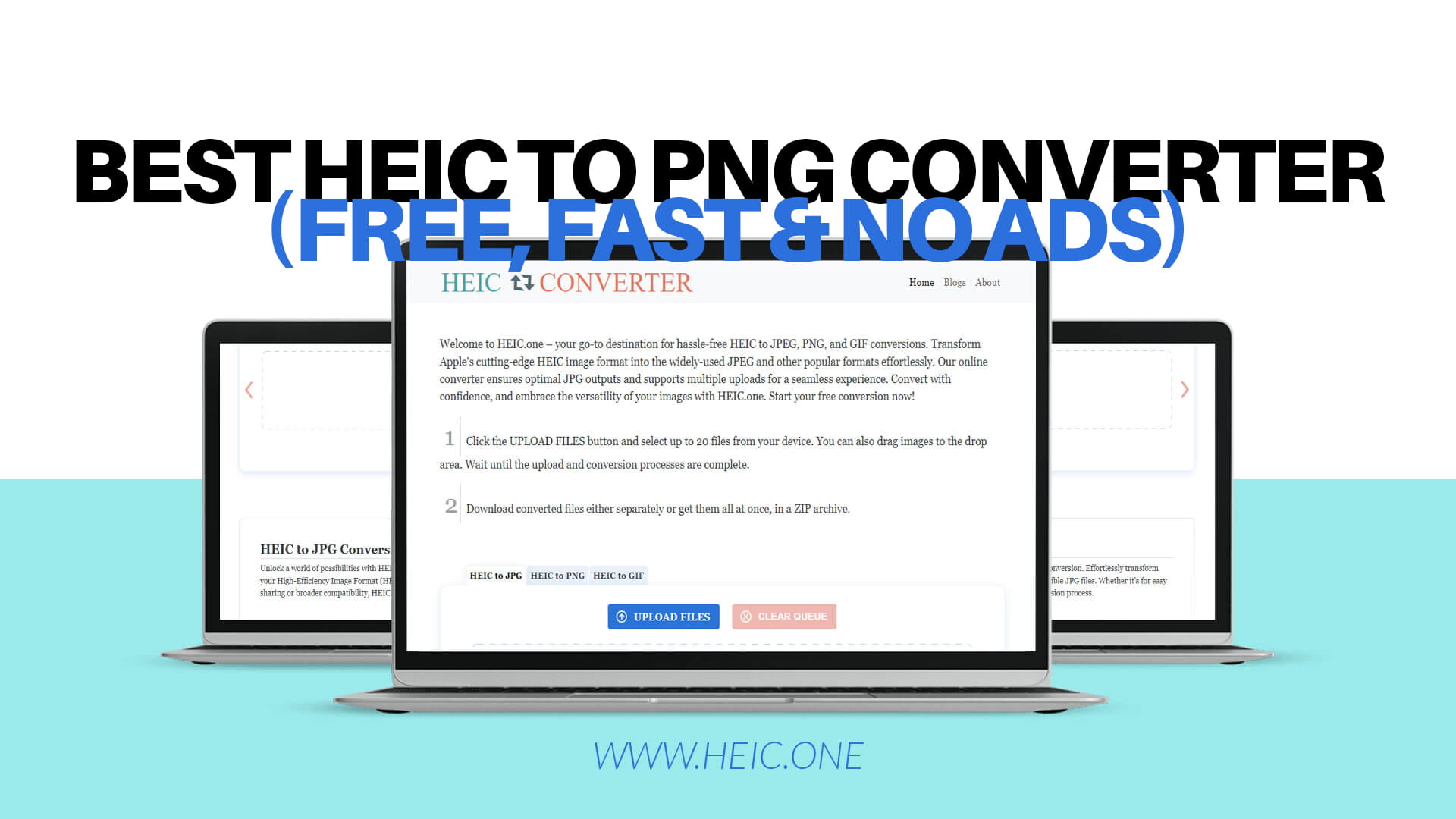
HEIC.ONE is one of the cleanest and most reliable free HEIC converters available right now. It was built specifically for people who need a fast, no-nonsense way to convert Apple's HEIC image format into more widely used formats like PNG, JPEG, and GIF.
What makes HEIC.ONE stand out is not just what it does, but how it does it. The whole experience is designed to be simple. You do not need to sign up for an account. You do not need to download anything. You just go to HEIC.ONE, upload your files, choose your output format, and get your converted images back.
No ads. No watermarks. No confusing settings to figure out.
Some tools advertise themselves as free but then limit how many files you can convert, require a subscription for batch processing, or add a watermark to every image. HEIC.ONE does not do any of that. It is free to use without restrictions.
Whether you are on Chrome, Firefox, Safari, Edge, or anything else, HEIC.ONE works. You can use it on Windows, Mac, Linux, or even your phone. Since it runs in the browser, there is nothing to install or update.
One of the more useful features is the ability to upload multiple HEIC files in one go. If you have a bunch of photos you need to convert, you do not have to do them individually. Upload them all together, convert, and download.
The processing time on HEIC.ONE is quick. For most files, you will have your PNG images ready in a matter of seconds. Larger files or bigger batches take a little longer, but the wait is reasonable.
HEIC.ONE supports three output formats: PNG, JPEG, and GIF. This gives you flexibility depending on what you need. If you want the best possible quality with no compression loss, choose PNG. If you need a smaller file size for web or email use, JPEG works well. GIF is available for specific use cases.
You do not need to enter your email address, create a password, or log in to anything. Just go to HEIC.ONE and start converting. That is it.
The process is about as simple as it gets. Here is how it works step by step.
First, go to HEIC.ONE in your browser. The homepage loads quickly and shows you a straightforward upload area right away.
Second, click on the upload button or drag and drop your HEIC files into the upload zone. You can add one file or several files at a time depending on how many you need to convert.
Third, choose PNG as your output format. HEIC.ONE gives you the option to convert to PNG, JPEG, or GIF. For the best quality and widest compatibility, PNG is the right choice in most cases.
Fourth, hit the convert button and wait a few seconds while the tool processes your files.
Fifth, download your converted PNG images. They will be ready to open, edit, share, or upload anywhere.
That is the whole process. You can go from HEIC to PNG in under a minute, even if you are converting several photos.
There are specific situations where converting your HEIC files to PNG makes a lot of sense.
When Uploading Photos to Websites
If you are uploading a profile picture, product image, or portfolio photo to any website that does not support HEIC, converting to PNG first prevents upload errors and ensures your image looks exactly the way you want it to.
When Editing Photos in Third-Party Software
If you use a photo editing tool that does not support HEIC, you need to convert first. PNG is a safe format that opens in virtually every piece of image editing software available.
When Sharing Photos With Non-Apple Users
If you are sending photos to someone who uses Windows or Android, converting to PNG means they will be able to open the images without any issues.
When Using Images in Documents or Presentations
Microsoft Word, Google Docs, PowerPoint, and other office tools work perfectly with PNG. If you are inserting a photo into a document or presentation, PNG gives you clean, high-quality results.
When Archiving Photos
If you want to store photos for the long term in a format that will definitely be readable years from now, PNG is a solid choice. It is a well-established, open format that is not going anywhere.
Understanding the differences between HEIC and PNG helps you make better decisions about when to convert and when to keep the original.
HEIC is a compressed format. It stores image data efficiently, which means small file sizes without too much quality loss. It is great for device storage but has limited compatibility outside the Apple ecosystem.
PNG is uncompressed or losslessly compressed. The files are typically larger than HEIC, but every detail of the image is preserved perfectly. It is supported everywhere — browsers, operating systems, apps, websites, and design tools. It also supports transparent backgrounds, which HEIC does not.
If storage space on your phone is a concern, HEIC is useful. But once you need to use or share that image outside of Apple's world, PNG is almost always the better format.
This is a fair question. When you upload a photo to an online tool, you are trusting that the site handles your files properly.
With HEIC.ONE, the conversion happens quickly and your files are not stored permanently on the server. The tool is designed to process and return your images without holding onto them. This makes it a much safer option than sending your photos to unknown tools with unclear privacy practices.
As a general rule, you should always use converters from reputable and transparent websites. Avoid tools that have no privacy information, ask for unnecessary personal details, or look like they were put together with no care.
HEIC.ONE keeps things clean and straightforward — upload, convert, download. No data collection, no storage.
Some guides recommend installing dedicated software on your computer to handle HEIC files. While that can work, it comes with its own set of issues.
Installing software takes time. It takes up space on your hard drive. It needs to be updated regularly. It might bundle other programs you did not ask for during the installation. And if you are on a work or school computer, you may not even have permission to install anything.
An online tool like HEIC.ONE removes all of those complications. There is nothing to install, nothing to update, and nothing to uninstall if you decide you no longer need it. It is just there, in your browser, ready to use whenever you need it.
For someone who only needs to convert HEIC files occasionally, a browser-based tool is always the more practical option. Even if you find yourself converting files regularly, HEIC.ONE handles that too without slowing you down.
Mac users have an easier time with HEIC files than Windows users because macOS can open them natively. But that does not mean you never need to convert.
If you need to send photos to someone on Windows, upload them to a website, or edit them in software that does not support HEIC, you still need a conversion step.
On a Mac, you can use the built-in Preview app to open a HEIC file and then export it as PNG. It works fine for individual files. But if you have ten, twenty, or fifty photos to convert, doing them one by one in Preview gets tedious very quickly.
HEIC.ONE is faster for batch conversions on Mac. You upload everything at once and download your PNG files in one shot. It saves a meaningful amount of time compared to converting images individually through Preview.
If you want to send HEIC files from your iPhone in a compatible format, there are a couple of approaches.
The simplest is to change the camera settings on your iPhone to capture photos in JPEG format instead of HEIC. Go to Settings, then Camera, then Formats, and select Most Compatible. Your camera will now save photos as JPEG by default.
If you already have HEIC files on your phone and want to convert them, you can visit HEIC.ONE directly in Safari on your iPhone. Upload the HEIC files from your photo library, choose PNG, convert, and save the output images back to your phone.
It is a bit less convenient on a phone compared to a computer, but it works.
A few things worth knowing before you start converting.
Make sure your HEIC files are the originals directly from your iPhone or iPad. Files that have already been edited or re-saved in some other way may behave differently during conversion.
If you are converting a large number of files, uploading them in batches rather than all at once can sometimes be faster and more reliable depending on your internet connection.
After conversion, check a few of your PNG files to make sure the quality looks right. For most users, the results will be exactly what you expect — clean, sharp images that look identical to the originals.
If you are converting files for web use and file size matters, keep in mind that PNG files are larger than JPEG. If you need smaller files for faster loading, consider converting to JPEG instead of PNG through HEIC.ONE. Both options are available.
This is something people reasonably worry about. You have a photo that looks great on your iPhone and you want it to still look great after converting.
With HEIC.ONE, the conversion from HEIC to PNG is handled carefully. PNG is a lossless format, which means the conversion process does not throw away image data. What you see in the PNG will look exactly like what you had in the HEIC file. Colors stay accurate. Sharpness is preserved. Fine details come through cleanly.
The only thing that changes is the file format itself. The visual content of your image remains the same.
This is one reason why PNG is the better choice compared to JPEG for conversions where quality is a priority. If you convert HEIC to JPEG, some compression happens and a small amount of quality is sacrificed to reduce the file size. With PNG, there is no trade-off. The file might be a bit larger, but it is an exact representation of your original photo.
For everyday photos like holiday pictures or casual snapshots, the quality difference between PNG and JPEG is barely noticeable to most people. But if you are working with professional photos, product images, screenshots, or anything where clarity really matters, PNG is the right format and HEIC.ONE delivers it without any quality degradation.
HEIC is a clever format for storing images on Apple devices. The small file sizes are genuinely useful when you are trying to fit thousands of photos on a phone. But outside the Apple ecosystem, HEIC creates more problems than it solves.
PNG is the format you want when compatibility and quality both matter. It opens everywhere, preserves every detail of your image, supports transparency, and is accepted by every website, app, and operating system you are likely to use.
The easiest way to go from HEIC to PNG is with a tool that does not make the process more complicated than it needs to be. HEIC.ONE gets this right. It is free, fast, works in your browser, handles multiple files at once, and does not load you up with ads or require a sign-up.
If you have HEIC files sitting on your computer or phone that you need to convert, HEIC.ONE is where you should start. Go to HEIC.ONE, upload your files, choose PNG, and download your converted images. The whole thing takes less than a minute, and you end up with images that work everywhere without any quality loss.
That is exactly what a converter should do.