If you own an iPhone or any Apple device, you have probably seen the word "HEIC" pop up when you transfer photos to your computer or try to share images with friends. Many people are confused by this format. It does not open easily on Windows computers, Android phones, or many websites. This is a problem that millions of Apple users face every single day.
The good news is that converting HEIC images to more common formats like JPEG, PNG, or GIF is now easier than ever. You do not need to download any software, pay for any subscription, or be a tech expert. All you need is a reliable online converter, and that is exactly what HEIC.ONE offers.
In this complete guide, we will walk you through everything you need to know about HEIC files, why they are used, why they can be a problem, and how you can convert them quickly and easily to JPEG, PNG, and GIF formats online.
HEIC stands for High Efficiency Image Container. It is a file format that Apple introduced with iOS 11 back in 2017. Since then, every iPhone and iPad running iOS 11 or later saves photos in this format by default.
Apple chose HEIC because it is a very smart format in terms of storage. A HEIC image can hold the same level of quality as a JPEG photo but takes up nearly half the storage space. This means your iPhone can store more photos without running out of space as quickly. For Apple devices, this is a great advantage.
HEIC is based on the High Efficiency Video Coding standard, which is the same technology used to compress high-quality videos. This makes it very advanced compared to older image formats. It supports features like 16-bit color depth, transparency, and even multiple images stored in a single file.
However, the problem with HEIC is that it is not widely supported outside of Apple's ecosystem. Most Windows computers cannot open HEIC files without installing special software or updates. Many websites, apps, and platforms do not accept HEIC uploads. Even some Android phones struggle with this format. This is why converting HEIC to a more universal format becomes so important for everyday users.
HEIC is a relatively new format, and it is controlled by a group called the Moving Picture Experts Group, commonly known as MPEG. While it is technically superior to JPEG in many ways, the technology requires licensing agreements. This means not all companies or developers have adopted it.
Windows, for example, added support for HEIC only through an optional codec available in the Microsoft Store. Many older versions of Windows simply cannot read HEIC files at all. Similarly, most photo editing programs, social media platforms, and file-sharing services were built around JPEG and PNG, which are older and universally recognized formats.
The reality is that HEIC is an excellent format for storage on Apple devices, but it creates friction the moment you step outside the Apple world. Converting HEIC to JPEG or PNG removes that friction entirely.
JPEG stands for Joint Photographic Experts Group, named after the organization that created it. It has been around since 1992 and is one of the most widely used image formats in the world. Virtually every device, operating system, website, and application supports JPEG.
JPEG uses a compression method that reduces file size by removing some image data that the human eye is less likely to notice. This is called lossy compression. The result is a much smaller file size compared to an uncompressed image, with only a very slight reduction in quality that is usually not visible in everyday use.
JPEG is ideal for photographs and complex images with lots of colors and gradients. It is the standard format used by digital cameras, social media platforms, email attachments, and countless websites. When you need a photo that will be viewed or shared widely, JPEG is almost always the right choice.
Converting your HEIC photos to JPEG means they can be opened on any device, uploaded to any website, and shared with anyone, without any compatibility issues at all.
PNG stands for Portable Network Graphics. It was created in the mid-1990s as a free and open alternative to another format called GIF. PNG quickly became popular because of its powerful features and wide compatibility.
Unlike JPEG, PNG uses lossless compression. This means no image data is lost during compression. Every pixel in the original image is preserved exactly. This makes PNG the ideal choice when image quality is critical, such as logos, graphics, text-based images, and screenshots.
One of the most important features of PNG is its support for transparency. If you need an image with a transparent background, PNG is the format to use. This is why PNG is extremely popular in web design, graphic design, and digital art.
PNG files are generally larger than JPEG files for the same image, but the quality is better. For photographs with lots of complex colors and details, JPEG is usually preferred. For graphics, logos, icons, and images where you need sharp edges or transparency, PNG is the better option.
Converting your HEIC images to PNG with HEIC.ONE gives you a high-quality, lossless version of your photo that is compatible with virtually every device and platform.
GIF stands for Graphics Interchange Format. It was created back in 1987 and is one of the oldest image formats still in widespread use today. GIFs became famous on the internet for its ability to support short animations. You have certainly seen GIFs used in messaging apps, social media, and websites to show short looping clips.
GIF supports a maximum of 256 colors, which makes it less suitable for photographs compared to JPEG or PNG. However, it remains extremely popular for simple animations, memes, reaction clips, and any content where a short repeating motion is needed.
When would you convert a HEIC image to GIF? If you have a Live Photo taken on your iPhone, for example, you might want to convert it into a looping animation that can be shared as a GIF. GIF is also useful for creating simple animated graphics or for sharing quick, fun content on messaging platforms.
HEIC.ONE gives you the option to convert your HEIC images to GIF, making it easy to repurpose your Apple photos into this widely recognized and shareable format.
Before we get into how to convert HEIC files, it helps to understand just how often this format causes real-world frustrations for everyday users. Here are some of the most common situations where HEIC becomes a problem.
You take a bunch of photos on your iPhone and then transfer them to your Windows laptop. You try to open them and get an error message. You try to attach them to an email and the recipient cannot open them. You try to upload them to a website or an online form and the upload is rejected. You try to print your photos at a local print shop and the software does not recognize the format.
All of these problems happen because HEIC is not yet universally supported. The solution to every one of these problems is simple: convert your HEIC files to JPEG, PNG, or GIF before you need to use them outside of your Apple device.
This is where a reliable and easy-to-use online tool like HEIC.ONE becomes genuinely valuable.
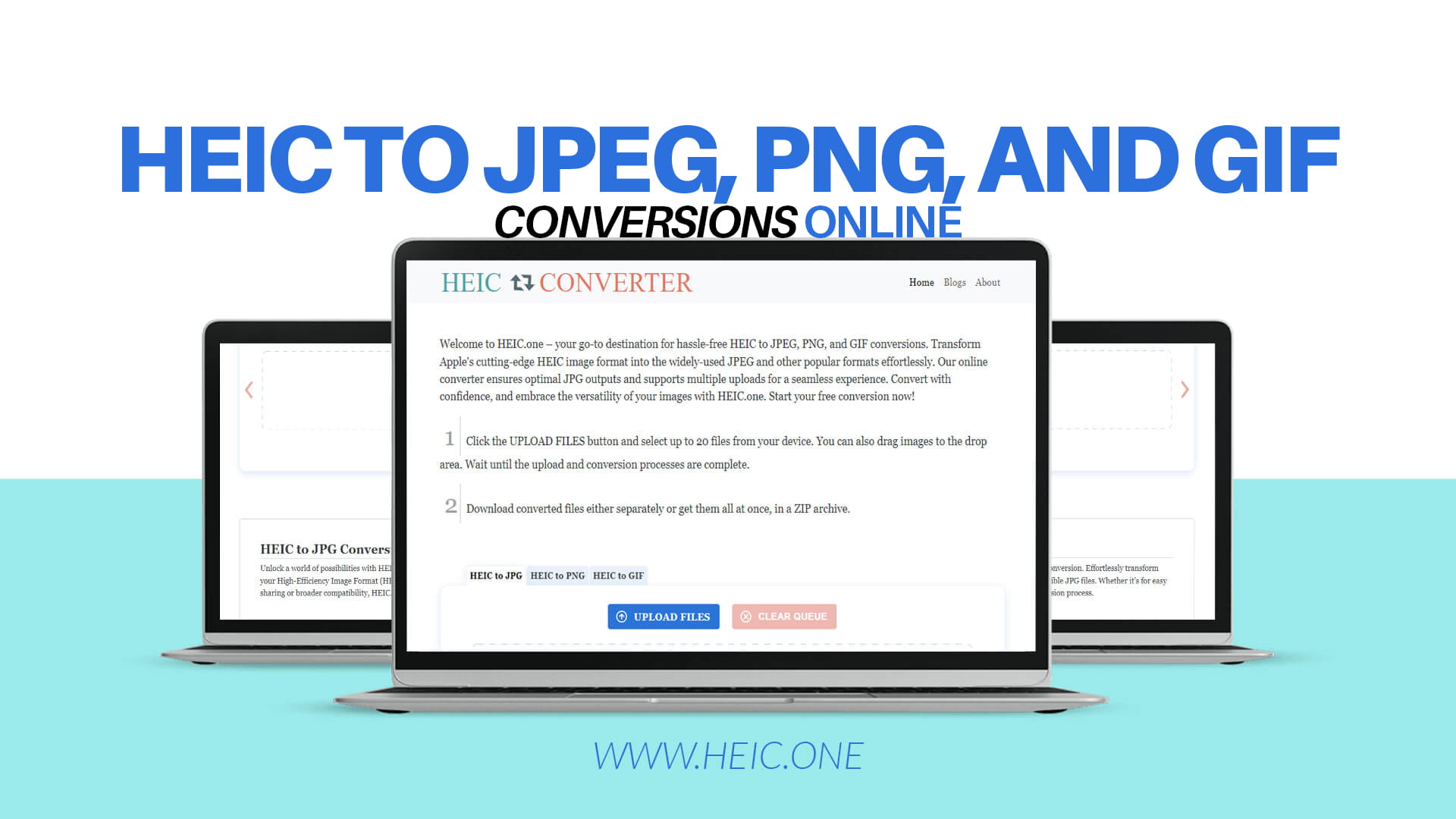
HEIC.ONE is a dedicated online platform designed specifically to solve the HEIC compatibility problem. It allows you to convert your HEIC images to JPEG, PNG, and GIF formats quickly, easily, and completely free of charge.
You do not need to download any software. You do not need to create an account or provide your email address. You simply visit HEIC.ONE, upload your HEIC files, choose your output format, and download your converted images. It really is that simple.
The platform is designed with everyday users in mind. You do not need any technical knowledge to use it. The interface is clean, straightforward, and easy to navigate. Whether you are a student, a professional photographer, a business owner, or just someone who takes a lot of iPhone photos, HEIC.ONE makes the conversion process completely hassle-free.
One of the standout features of HEIC.ONE is its support for multiple file uploads. Instead of having to convert one photo at a time, you can upload several HEIC files at once and convert them all in a single session. This saves a significant amount of time, especially if you have taken a lot of photos that you need to use outside of your Apple device.
Converting HEIC to JPEG using HEIC.ONE is a very simple process. Here is how it works step by step.
First, open your web browser and go to HEIC.ONE. You will see a clean and simple homepage with a clear option to upload your files. Second, click the upload button or simply drag and drop your HEIC files into the designated area. You can upload one file or multiple files at once, which is a huge time saver if you have many photos to convert.
Third, once your files are uploaded, select JPEG as your output format. HEIC.ONE gives you the option to choose between JPEG, PNG, and GIF, so you can pick the format that best suits your needs. Fourth, click the convert button and wait just a few seconds for the conversion to complete. The process is very fast, even for multiple files. Fifth, once the conversion is done, download your converted JPEG images directly to your device.
That is the entire process. It takes no more than a minute and requires no technical knowledge whatsoever. Your converted JPEG files will be fully compatible with every device, platform, and application.
The process for converting HEIC to PNG is the same as converting to JPEG, with just one small difference in the format selection step. Visit HEIC.ONE, upload your HEIC files, and when prompted to choose your output format, select PNG instead of JPEG.
HEIC.ONE will then convert your images to high-quality PNG files that preserve all the detail of your original HEIC photos. You will get lossless images with full transparency support if applicable.
PNG conversion is particularly useful for anyone who works in design or needs images for websites and digital materials where quality and transparency are important. With HEIC.ONE, you get professional-quality PNG outputs without needing any design software or technical expertise.
Converting HEIC to GIF follows the same simple steps. Head over to HEIC.ONE, upload your HEIC image, select GIF as your output format, and download your converted file.
While GIF is not typically used for standard photographs due to its 256-color limitation, it is a great option when you want to create shareable animated content or simple graphics from your Apple Photos. HEIC.ONE makes this conversion just as easy as any other format.
When you convert a HEIC file to JPEG, the quality of the output matters a great deal. A poor converter can produce JPEG images that look washed out, blurry, or over-compressed. This defeats the purpose of converting your photos in the first place.
HEIC.ONE is designed to deliver optimal JPEG output quality. The conversion engine is built to preserve as much of the original image detail as possible during the conversion process. The colors stay accurate, the sharpness is maintained, and the file size is kept reasonable without sacrificing visual quality.
This attention to output quality is one of the reasons why HEIC.ONE stands out from many other online converters. You get JPEG files that look great and are ready to use immediately, without any need for further editing or quality adjustments.
Privacy and security are important concerns whenever you upload files to an online platform. You want to know that your photos are handled responsibly and that your personal data is protected.
HEIC.ONE takes user privacy seriously. The platform is designed to process your files for conversion purposes without storing or sharing your images. Your photos are yours, and the conversion tool is simply there to help you change their format.
For anyone who values privacy, this is an important consideration. Online tools that retain your uploaded files indefinitely or use them for other purposes are a genuine concern. HEIC.ONE is built with a focus on giving users a clean, trustworthy experience.
There are many clear benefits to converting your HEIC files to more universal formats. Let us look at the most important ones.
The first benefit is universal compatibility. JPEG, PNG, and GIF files can be opened on literally any device, operating system, or platform. Whether someone is using Windows, Android, Linux, or any other system, they will have no trouble viewing your converted images.
The second benefit is easy sharing. When you send JPEG or PNG images via email, messaging apps, or social media, recipients can view them instantly without needing any special software or plugins.
The third benefit is professional use. Many businesses, online forms, and professional platforms require image uploads in JPEG or PNG format. Converting your HEIC photos ensures they meet these requirements without any issues.
The fourth benefit is editing flexibility. Most photo editing software, from professional tools like Photoshop to simple free editors, work best with JPEG and PNG files. Converting your HEIC images opens up a much wider range of editing options.
The fifth benefit is printing. Print shops and online printing services typically require JPEG files. Converting your HEIC photos to JPEG ensures you can print your memories without any format-related problems.
The sixth benefit is storage management. While HEIC files are small on Apple devices, managing and organizing a large collection of images is often easier when all files are in the same universal format.
While converting HEIC files is simple, there are a few tips that can help you get the best possible results from your conversions.
Always use the format that best matches your intended use. If you are converting photos for general sharing or printing, choose JPEG. If you need transparency or are working with graphics and logos, choose PNG. If you want to create animated content, choose GIF.
When uploading multiple files for batch conversion, make sure all files are complete and undamaged before uploading. Corrupted or incomplete HEIC files may not convert correctly.
After conversion, check your output files to make sure they look the way you expect. Open them on your device to confirm the quality and that the images display correctly before sharing or using them.
If you are converting a very large number of files, take advantage of the multiple upload feature on HEIC.ONE to process them all at once rather than one at a time.
The world of digital images is always evolving. New formats like AVIF and WebP are emerging as even more efficient alternatives to both HEIC and JPEG. However, JPEG, PNG, and GIF remain the most universally supported formats in the world today and will continue to be widely used for many years to come.
For iPhone and Apple users, HEIC will continue to be the default format for capturing photos on their devices because of its excellent compression efficiency. This means the need to convert HEIC files to other formats will remain relevant for a very long time.
Tools like HEIC.ONE plays an important role in bridging the gap between Apple's advanced image technology and the rest of the digital world. They make it possible for Apple users to enjoy the best of both worlds: efficient storage on their devices and universal compatibility when sharing and using their photos elsewhere.
Many online tools claim to convert HEIC files, but not all of them deliver the same quality, reliability, and ease of use. HEIC.ONE was built specifically to address this one task and to do it exceptionally well.
The platform supports all three of the most popular output formats: JPEG, PNG, and GIF. It delivers optimal output quality, especially for JPEG conversions. It supports multiple file uploads for efficient batch processing. It requires no software download or installation. It requires no account registration or email signup. It is completely free to use. And it is designed to be intuitive and easy for users of all technical levels.
All of these qualities make HEIC.ONE the smart and simple choice for anyone who needs to convert HEIC images online. Whether you need to convert one photo or hundreds, HEIC.ONE is ready to help you get the job done quickly and effortlessly.
Now that you understand everything about HEIC files, why they can be a challenge outside of Apple devices, and how easy it is to convert them to JPEG, PNG, and GIF, there is no reason to let format compatibility issues slow you down.
Visit HEIC.ONE today and start converting your Apple Photos for free. The process is fast, the quality is excellent, and you will never have to worry about HEIC compatibility issues again. Whether you need your images for work, for sharing with friends and family, for printing, or for use on websites and apps, HEIC.ONE has you covered.
Transform your HEIC images into universally compatible formats with just a few clicks. No downloads, no software, no technical knowledge required. Just simple, reliable, and high-quality HEIC conversion — completely free, at HEIC.ONE.