HEIC stands for High Efficiency Image Container. HEIC is a relatively new image format that was created by Apple, the company that makes iPhones, iPads, and Mac computers. Apple released HEIC in the year two thousand sixteen, which is just a few years ago. Since that time, HEIC has become the standard image format for Apple devices.
HEIC was created to replace JPEG, which has been the standard image format for many decades. JPEG works very well, but it is not as efficient as newer technology allows. HEIC was designed to be much more efficient than JPEG. This means HEIC can create much smaller files while keeping the same image quality. A photograph that is five megabytes as a JPEG file might be just one megabyte as an HEIC file. This is five times smaller.
The small file size of HEIC is very useful for people with iPhones and other Apple devices. When your photos are five times smaller, you can store five times more photos on your device before running out of space. Smaller photo files also use less internet bandwidth when uploading or downloading. This saves time and data.
HEIC is also of very good quality. Apple designed HEIC to look at the photograph and remove only the information that human eyes usually cannot see. This means HEIC can make files very small while the photo still looks beautiful and detailed.
All modern iPhones, iPads, and Mac computers save photos in HEIC format by default. If you own an Apple device and take photos, your photos are probably in HEIC format. This is why so many people have HEIC files.
However, HEIC has one big problem. Not all devices, software programs, and websites support HEIC format. Windows computers do not support HEIC very well. Android phones do not support HEIC. Older computers and phones do not support HEIC. Many websites do not accept HEIC files for uploading. This is the main reason people need to convert HEIC files to other formats.
PNG stands for Portable Network Graphics. PNG is a much older image format than HEIC. PNG has been around since the year nineteen ninety-six, which is more than twenty-five years ago. Even though PNG is old, it is still very important and very useful today.
PNG was created to be a better replacement for even older formats. PNG has some special features that make it very useful. The most important feature is transparency support. Transparency means you can see through parts of the image. If you have a picture of a logo and you remove the background, the background part becomes invisible and you can see through it to whatever is behind.
This transparency feature makes PNG perfect for logos, icons, and graphic designs. If you are a designer and you create a logo, you would save it as PNG so the background can be transparent. Then the logo can be placed on any background color and look perfect.
PNG also keeps very good image quality. PNG uses lossless compression, which means no information is removed from the image. The image looks exactly the same after compression as before compression. This is different from JPEG, which removes some information to make files smaller.
The disadvantage of PNG is that files are usually larger than JPEG or HEIC files. A photograph might be five megabytes as PNG but only one megabyte as HEIC. The larger file size is the main disadvantage of PNG.
PNG is supported by all modern devices. Every computer supports PNG. Every phone supports PNG. Every website supports PNG. Every tablet supports PNG. PNG works absolutely everywhere. This universal support is one of the biggest reasons PNG is so popular.
Let's compare HEIC and PNG directly so you understand the differences clearly.
File size is the biggest difference between HEIC and PNG. HEIC files are much smaller than PNG files. For the same photograph, HEIC might be one megabyte while PNG might be five megabytes. HEIC is much more efficient.
Device support is another major difference. HEIC is supported mainly by Apple devices. PNG is supported by absolutely everything. If device compatibility is important, PNG is much better.
Quality is similar between HEIC and PNG. Both formats can store beautiful, high-quality photographs. The quality difference is usually not noticeable to human eyes.
Transparency is a feature that PNG supports well, but HEIC does not support well. If you need transparent backgrounds, PNG is much better than HEIC.
Age and popularity matter too. PNG is older and more established. PNG has been around longer and is more widely known. HEIC is newer and only popular because Apple uses it.
Editing and software support is better for PNG. Many software programs support PNG. Some software does not support HEIC yet.
HEIC is better if you want the smallest file sizes, and you only need to work on Apple devices. PNG is better if you need compatibility with all devices and all software.
When you have HEIC files from your iPhone but need to use them on Windows, Android, or the web, converting to PNG is the right choice.
There are many good reasons to convert HEIC files to PNG format. Understanding these reasons will help you know when and why to convert.
The first reason is device compatibility. If you take photos on your iPhone in HEIC format, but you want to view them on your Windows computer, you need to convert to PNG. Windows computers do not support HEIC very well. Converting to PNG makes your photos viewable on any computer.
The second reason is software compatibility. Many software programs, especially older programs, do not support HEIC format. If you want to edit your HEIC photo in an older photo editing program, the program might not open HEIC files. Converting to PNG lets you edit in any software.
The third reason is website compatibility. Many websites do not accept HEIC files for uploading. Social media websites like Facebook and Instagram might not accept HEIC directly. Photo-sharing websites might require JPEG or PNG. If a website does not accept HEIC, you must convert to a format the website accepts.
The fourth reason is sharing with others. If you take a photo on your iPhone and want to share it with someone who uses Android or Windows, that person's device might not support HEIC. Converting to PNG ensures they can view your photo perfectly.
The fifth reason is professional work. Photographers, designers, and professional users often need to work with widely compatible formats. PNG is much more compatible than HEIC, so professionals often convert HEIC to PNG.
The sixth reason is future compatibility. HEIC is a relatively new format. We do not know if it will be supported on devices ten or twenty years from now. PNG is an established format that has been around for twenty-five years and will probably be supported for many more years. Converting HEIC to PNG ensures your photos will still work far into the future.
The seventh reason is backup and archiving. If you are backing up or archiving important photos, using a widely supported format like PNG is safer than using HEIC which has limited support.
The eighth reason is consistency. If you have photos in many different formats, converting everything to one format like PNG creates consistency. All your photos are the same format and work the same way everywhere.
Bulk conversion means converting many files at the same time instead of converting one file at a time.
If you have ten HEIC photos from your iPhone and need to convert them all to PNG, you could convert them one at a time. This would take ten separate uploads and downloads. This would take a lot of time and be very tedious.
With bulk conversion, you can upload all ten photos at once. The conversion service converts all ten photos automatically at the same time. You then download all ten converted photos at once. This saves enormous amounts of time.
Bulk conversion is like the difference between washing ten dishes one at a time versus washing all ten dishes together. Doing them together is much faster and more efficient.
Many people have hundreds or even thousands of HEIC photos on their iPhones. Converting all of them one at a time would take hours or even days. Bulk conversion can do the same work in minutes.
Bulk conversion is perfect when you have many photos to convert. Maybe you are switching from iPhone to Android and need to convert all your photos. Maybe you are backing up your phone and need all photos in a universal format. Maybe you are cleaning out your phone storage and need to convert your photos so they take up less space.
The time savings of bulk conversion is enormous. For someone with one hundred photos, converting one at a time might take two hours. Bulk conversion might take five to ten minutes. This is a savings of almost two hours.
Bulk conversion is also more convenient. You do not need to watch each conversion one at a time. You upload all files once, start the conversion, and the service does the work for you.
Bulk conversion is usually just as easy as single conversion. You upload multiple files instead of one file. You choose the output format once. The service handles everything else automatically.
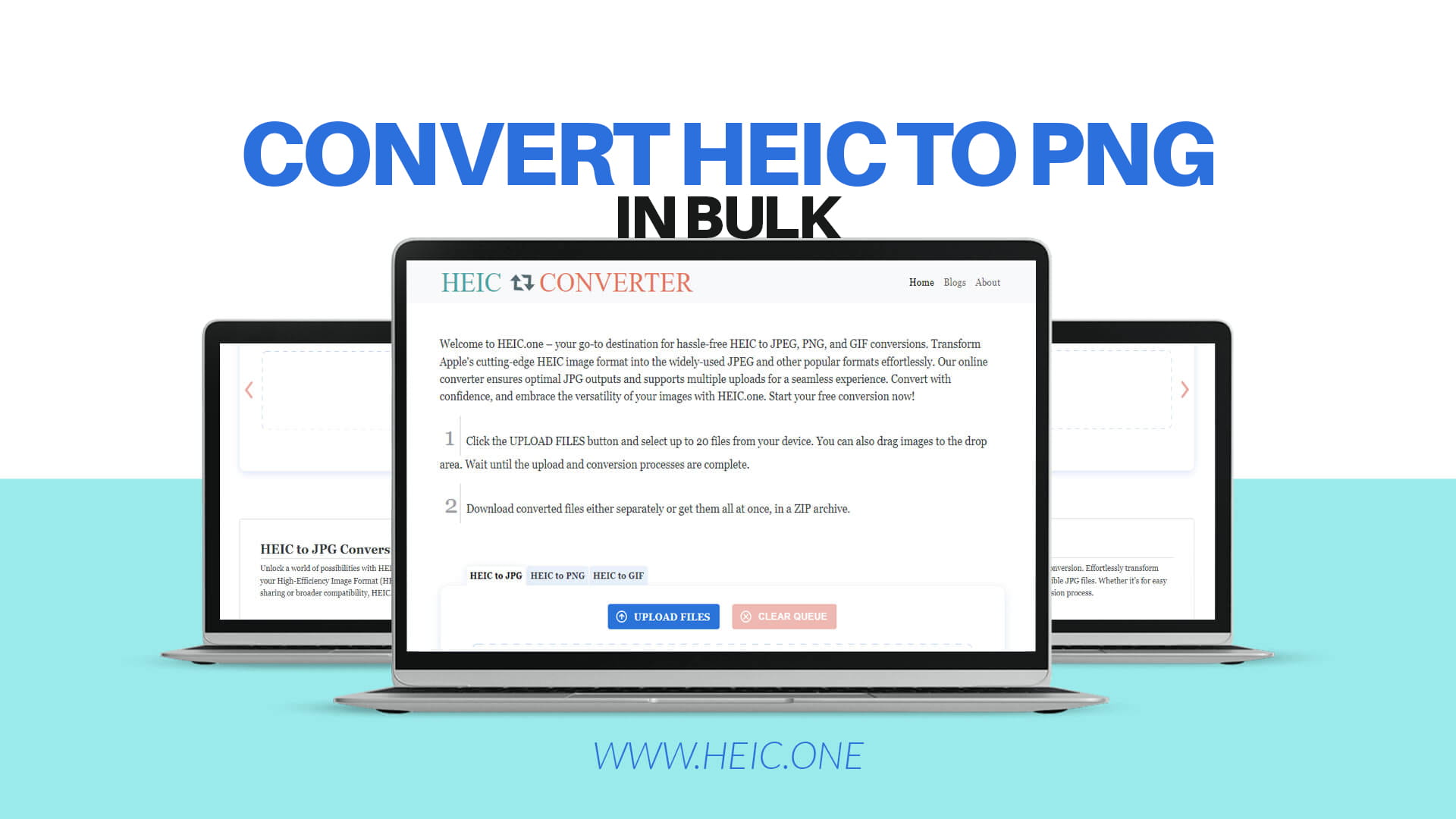
Heic.one is a specialized website designed exactly for converting HEIC photos to other formats. Heic.one is simple, free, and powerful.
Heic.one was created because so many people have HEIC photos on their iPhones and need to convert them. The website specializes in HEIC conversion, which means it does this one thing very well.
Heic.one converts HEIC to multiple formats including PNG, JPEG, and GIF. PNG is the most popular format for conversion, but Heic.one also supports JPEG and GIF.
The service is completely free. You do not need to create an account. You do not need to pay any money. It is always free.
Heic.one supports bulk uploads, which means you can upload and convert many photos at once. This is the main advantage of Heic.one compared to simple online converters.
Heic.one is very fast. Photos are converted within seconds to a few minutes depending on quantity and file size.
Heic.one keeps your photos private. Uploaded photos are deleted after you download them. Photos are not stored or shared.
Heic.one is optimized for the best quality output. The converted PNG files look beautiful and exactly like the original HEIC photos.
Heic.one works on any device. You can use it on your computer, phone, or tablet. It works on Windows, Mac, Linux, iOS, and Android.
Converting HEIC to PNG in bulk is very simple. Here is the step-by-step process.
First, you visit the Heic.one website. You can search for Heic.one using any search engine. The website is easy to find.
Second, you see the upload area on the website. The upload area is usually the main feature you see right away. The upload area says you can drag and drop images or click to browse.
Third, you prepare your HEIC photos. You can select them on your computer or device. If you have many photos, select all of them at once. Most computers let you select multiple files by holding Ctrl (or Cmd on Mac) and clicking each file. Or you can select the first file, hold Shift, and click the last file to select all files between them.
Fourth, you drag all your selected HEIC photos onto the Heic.one website. You can drag them from your file browser directly onto the website. Or you can click the browse button, navigate to your photos, and select multiple photos at once.
Fifth, all your photos appear in the upload area. You can see how many photos you are uploading. You can remove any photos if you want to upload fewer.
Sixth, you choose PNG as your output format. Heic.one shows you format options. You click PNG to select it. You can also choose JPEG or GIF if you want, but PNG is the most popular choice.
Seventh, you can adjust quality settings if you want. Usually, the default settings are perfect and you do not need to change anything. But if you want to adjust quality, Heic.one lets you do this.
Eighth, you click the convert button or start button. The website begins converting all your photos automatically.
Ninth, you wait while the conversion happens. You see a progress indicator showing how much of the conversion is complete. With bulk conversion, you usually see each photo convert, or you see an overall progress bar.
Tenth, when conversion is complete, you download all your converted PNG files. You can usually download them one at a time, or if the website supports it, download them all together in a single compressed file.
Eleventh, you now have all your photos in PNG format. They work on all devices. You can organize them, edit them, share them, or use them however you want.
Let's look at the bulk conversion process in more detail so you understand everything that happens.
When you upload multiple HEIC photos, the website receives all of them at once. The website stores them temporarily on its servers while conversion happens.
The conversion process happens automatically and usually quickly. The website reads each HEIC photo file. It understands the HEIC format and extracts the image data. It then encodes this image data in PNG format. It creates a new PNG file with the image data.
This process happens for each photo you upload. If you uploaded ten photos, the website converts each one from HEIC to PNG.
The website ensures that the converted PNG files look identical to the original HEIC photos. The colors, brightness, contrast, and all details are preserved. A PNG conversion should look exactly like the original HEIC photo.
After all photos are converted, the website makes them available for download. You can download each photo individually or download them together.
The entire process is automatic. You do not need to do anything except upload and download. The website handles all the technical work.
Modern servers and technology make bulk conversion very fast. Converting even one hundred photos usually takes just a few minutes.
Bulk conversion saves time in multiple ways.
First, you upload all files at once instead of uploading each file separately. Instead of uploading one photo, waiting, uploading another photo, waiting, uploading another photo, and so on for ten uploads, you upload all ten at once. This saves time because you only upload once.
Second, conversion happens automatically in parallel. The server processes multiple photos at the same time. If you convert one at a time, each conversion finishes before the next one starts, which takes longer. Bulk conversion processes multiple at the same time, which is faster.
Third, you download all files at once instead of downloading each separately. Instead of downloading one photo, saving it, downloading another photo, saving it, and so on for ten downloads, you can download them together or all at once. This saves time.
Fourth, you do not need to monitor the conversion as carefully. With one conversion at a time, you need to watch and wait for each one to finish. With bulk conversion, you start the process and let it run. You can work on other things while conversion happens.
Fifth, bulk conversion is less repetitive and tedious. You do not need to repeat the same steps many times. You do the steps once for many files.
For someone with one hundred HEIC photos, converting one at a time might take an hour or more. Bulk conversion might take five to ten minutes. The time saved is enormous.
Bulk conversion is also less likely to have mistakes because the steps are done fewer times.
Many people worry that converting HEIC to PNG will make their photos look worse. This is an understandable concern, but usually not a real problem.
HEIC is a very efficient format, but it still stores all the image data. When you convert HEIC to PNG, the image data is preserved. PNG can store all the same image quality as HEIC. The converted PNG photo will look identical to the original HEIC photo.
PNG uses lossless compression, which means no quality information is lost. The image after PNG compression looks exactly the same as the image before PNG compression.
However, you might have the option to choose quality settings during conversion. If you choose lower quality settings, the photo might look slightly less sharp or detailed. Lower quality creates smaller files. Higher quality creates larger files but looks better.
For most purposes, you want to keep quality at the default or high setting. This preserves the beauty and detail of your original HEIC photo.
If you are converting photos just to archive them or share them casually, slightly lower quality is fine. If you are converting important or professional photos, keep quality high.
The quality difference during HEIC to PNG conversion is usually very small when using good quality settings. Most people cannot see any difference between the original HEIC and the converted PNG.
Heic.one is optimized for high-quality conversion. The website uses good algorithms to convert your photos beautifully.
There are many common situations where people convert HEIC to PNG.
The first use case is switching phones. When you switch from iPhone to Android, your photos are in HEIC format but Android does not support HEIC very well. Converting to PNG makes your photos work perfectly on Android.
The second use case is backing up photos. When you back up your iPhone photos to a computer or cloud service, converting to PNG ensures they work on any computer or device in the future.
The third use case is sharing photos. When you take a photo on an iPhone and want to share it with a friend who uses Android or Windows, converting to PNG ensures they can see the photo.
The fourth use case is professional photography. Professional photographers often convert photos to PNG because it is widely supported and gives them more flexibility.
The fifth use case is web uploading. Many websites do not accept HEIC. If you want to upload a photo to Facebook, Instagram, a website, or any other online service that might not support HEIC, converting to PNG ensures it works.
The sixth use case is photo editing. When you want to edit a photo in software that does not support HEIC, converting to PNG lets you edit it.
The seventh use case is creating graphics. When you want to use a photo in a design or graphic project, PNG format with transparency support is often better than HEIC.
The eighth use case is storing photos. When you want to store photos in a safe, universal format that will work for many years, PNG is more reliable than newer HEIC format.
The ninth use case is printing photos. When you want to print photos or send them to a print service, some services work better with PNG or JPEG than with HEIC.
The tenth use case is creating consistency. When you have photos in mixed formats and want everything in one format, converting all photos to PNG creates consistency.
Different devices support HEIC and PNG differently.
iPhones and iPads support HEIC natively because they create HEIC files. However, viewing HEIC photos on older iPhones or iPads might not work well.
Mac computers support HEIC fairly well because Apple created it, but support is not perfect.
Windows computers do not support HEIC very well. Old Windows computers might not support HEIC at all. Newer Windows computers support it better but it is not ideal.
Android phones do not support HEIC. Some newer Android phones have added HEIC support, but it is not standard across Android devices.
Every computer and every phone supports PNG. PNG is truly universal. PNG works on Windows, Mac, Linux, iPhone, iPad, Android, and everything else.
Websites accept PNG. All social media websites accept PNG. All photo-sharing websites accept PNG. All email services accept PNG. PNG is the universal format for the internet.
When you need maximum compatibility with all devices and all software, PNG is always the right choice.
This is the main reason people convert HEIC to PNG. HEIC works well on iPhones but is problematic everywhere else. PNG works everywhere.
Let's walk through your first bulk conversion step by step.
Step one: Gather your HEIC photos. Look for all the HEIC photos you want to convert. They might be on your computer, on an external hard drive, or on a memory card. Organize them in one folder to make them easy to find.
Step two: Visit Heic.one website. Search for Heic.one online using any search engine. Click on the official website.
Step three: See the upload area. The homepage of Heic.one shows an upload area. This is where you will upload your photos.
Step four: Select your HEIC photos. Open your file manager or finder. Navigate to the folder with your HEIC photos. Select multiple photos at once. If you have ten photos, you can click the first photo, hold Shift, and click the last photo to select all of them. Or hold Ctrl and click each photo individually.
Step five: Drag your photos to Heic.one. Drag your selected photos from your file manager onto the Heic.one website. A drop area usually appears to show you where to drop them. Release your mouse to drop the photos.
Step six: See your photos uploading. The website begins uploading all your photos. You usually see a progress bar showing the upload progress.
Step seven: Choose PNG format. After uploading, you choose your desired output format. PNG is usually the default choice. Click PNG to make sure it is selected.
Step eight: Check quality settings. Look at any quality or settings options. Usually, default settings are perfect. If you want to adjust anything, you can change it now.
Step nine: Click convert. Find and click the convert button or start button. The website begins converting all your photos.
Step ten: Watch the progress. You see a progress indicator showing conversion status. This usually takes seconds to minutes, depending on how many photos you have.
Step eleven: Download your converted photos. When conversion is complete, you see a download option. You can download all photos together or individually. Click download and save the files to your computer.
Step twelve: Check your downloaded photos. Open the folder with your converted PNG photos. Look at a few of them to make sure they look good and convert properly.
Step thirteen: Organize your new PNG photos. Move your converted PNG photos to a folder with a clear name so you can find them later.
There are many different ways to convert HEIC files, but Heic.one has several advantages.
Heic.one specializes in HEIC conversion. The website is designed exactly for this purpose. This means it does conversion better than general purpose conversion websites.
Heic.one supports bulk conversion. You can upload many photos at once. Other websites might only allow one at a time, which is much slower.
Heic.one is completely free. Some other conversion services charge money. Heic.one is always free.
Heic.one requires no software installation. Some methods require downloading and installing special software. Heic.one works in your web browser.
Heic.one is very fast. Modern servers and technology make conversion happen in seconds to minutes.
Heic.one keeps your photos private. Photos are deleted after download. Your privacy is protected.
Heic.one is easy to use. The website is simple and intuitive. Anyone can use it, even people new to computers.
Heic.one works on any device. You can use it on computer, phone, or tablet. You can use it on Windows, Mac, or Linux.
Heic.one produces high quality output. The converted PNG photos look beautiful and identical to the original HEIC photos.
Heic.one is reliable. The website has been used by thousands of people for HEIC conversion.
Converting on your iPhone directly is also possible using built-in tools, but Heic.one is better for bulk conversion of many photos.
Using desktop software like Adobe Lightroom is possible, but requires buying expensive software. Heic.one is free.
Following these tips will help you convert your HEIC photos successfully.
Tip one: Test with a small batch first. If you have one hundred photos, convert just ten first. Make sure the results look good before converting all one hundred.
Tip two: Keep your original HEIC files as backup. Do not delete them until you are sure the converted PNG files are working properly.
Tip three: Use organized file names. Name your converted files clearly so you know what they contain.
Tip four: Create separate folders for original and converted. Keep your HEIC files in one folder and PNG files in another folder.
Tip five: Check the converted photos on different devices. View them on your computer, phone, and tablet to make sure they work everywhere.
Tip six: Choose high quality settings for important photos. If the photos are important or professional, keep quality high.
Tip seven: Use lower quality only if file size is critical. If you want smaller files, lower quality creates smaller files. But quality difference might be noticeable.
Tip eight: Convert in batches if you have very many files. If you have five hundred photos, convert fifty at a time instead of all five hundred at once. This is more manageable.
Tip nine: Do conversion when you have time. Bulk conversion takes a few minutes. Do it when you are not busy.
Tip ten: Share converted photos confidently. After converting, you can share your PNG photos with anyone. They will work on any device.
Here are answers to common questions people have about conversion.
Will my photos lose quality when converting from HEIC to PNG? No, quality is preserved. PNG can store the same quality as HEIC. The converted photo will look identical to the original.
Is conversion free? Yes, Heic.one is completely free. You never pay any money.
How long does bulk conversion take? Usually, bulk conversion takes seconds to a few minutes depending on the number of photos and their size. Ten photos might take thirty seconds. One hundred photos might take three minutes.
Can I convert on my phone? Yes, you can use Heic.one on your phone's web browser. The process is the same as on a computer.
Will my original HEIC files be deleted? No, converting creates new PNG files. Your original HEIC files remain on your device. You control whether to keep or delete them.
Are my photos safe? Yes, photos uploaded to Heic.one are deleted after you download them. Your photos are not stored or shared.
What if I have a very large number of photos? You can convert them in multiple batches. Convert fifty at a time, or one hundred at a time, depending on what works for you.
Can I convert photos other than HEIC? Heic.one specializes in HEIC conversion. For other formats, you might need different tools.
What is the file size limit? Heic.one usually accepts large files, but very large files might not work. If you have huge photo files, converting in smaller batches might work better.
Do I need to create an account? No, Heic.one does not require an account. You can use it instantly.
Image formats continue to evolve and improve. Technology is always advancing.
HEIC is still relatively new, and Apple is improving it. Future versions of HEIC might be even better.
PNG is an established format that has existed for twenty-five years. PNG is stable and unlikely to disappear.
New formats like WebP and AVIF are being created that are even more efficient than HEIC.
Cloud photo services like Google Photos, Amazon Photos, and Apple iCloud are handling format compatibility automatically. These services often convert photos to different formats in the background.
Artificial intelligence is being used to improve image conversion. Future converters might be even faster and create even better quality.
Despite all the new formats being created, PNG will probably remain widely supported and widely used for many years.
If you are converting HEIC to PNG for long-term storage, here are some additional tips.
Store your PNG photos in multiple places. Keep one copy on your computer, one copy on an external hard drive, and one copy in cloud storage.
Use a consistent naming system for your photos. Name them by date or location so you can organize them easily.
Create backup copies of your important photos. Do not rely on just one copy.
Store photos in a format like PNG that is widely supported. Avoid very new formats that might not be supported in the future.
Keep metadata and information about your photos. Write down when the photos were taken and what they show.
Organize your photos into folders by year or category. This makes them easy to find later.
Review your photo collection every year or so. Make sure all files are in good condition.
For anyone who is not exclusively using Apple devices, PNG is the right choice.
Converting HEIC to PNG in bulk is simple, free, and powerful. Bulk conversion saves enormous amounts of time compared to converting one photo at a time.
If you have HEIC photos from your iPhone and need to use them on Windows, Android, the web, or any other device, converting to PNG is the right solution.
Heic.one makes the conversion process simple and fast. You just upload, choose PNG format, and download. Everything else happens automatically.
Start converting your photos today. Visit Heic.one. Upload a small batch of photos first and see how easy it is. If you are happy with the results, convert all your remaining photos.
Your photos will work everywhere. Your photos will be compatible with all devices and all software. Your photos will be safe and usable for many years to come.
Do not worry about losing quality. PNG conversion preserves the beauty and detail of your original HEIC photos.
Do not worry about complicated technical processes. The conversion is completely automatic and easy.
Do not worry about cost. Heic.one is completely free.
The time to convert your HEIC photos to PNG is now. Stop having problems with HEIC format limitations. Start enjoying the flexibility and compatibility of PNG format.
Convert your HEIC photos to PNG in bulk today using Heic.one. Your photos, your devices, and your future self will thank you.