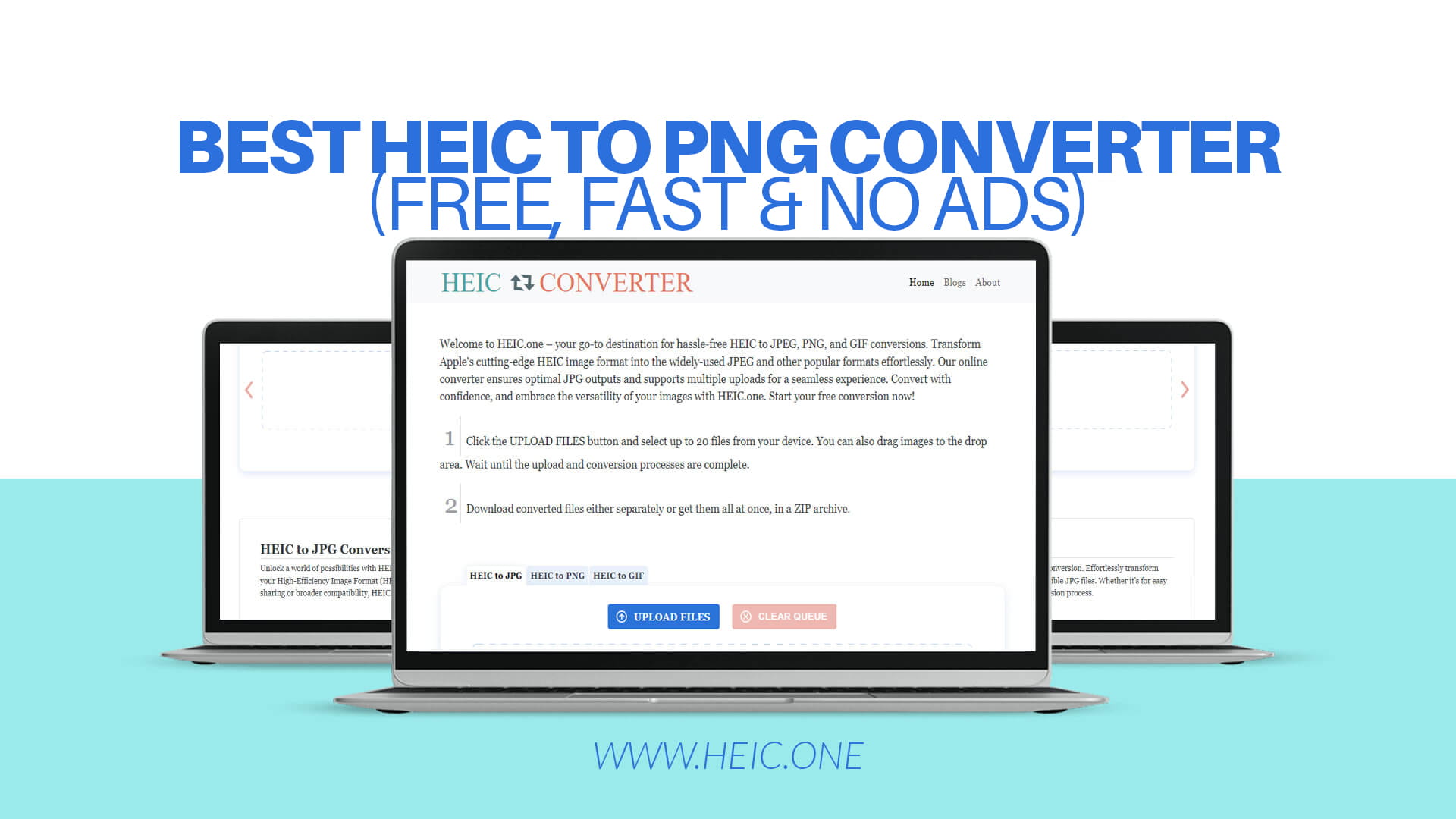
If you use an iPhone, iPad, or other Apple devices, you probably know about HEIC format. This is Apple's modern image format that saves storage space while keeping great picture quality. However, many people and websites cannot use HEIC files. They need PNG, JPEG, or GIF formats instead. This is where Heic.one comes in to help you.
Heic.one is a simple and free online tool that converts HEIC images to PNG and other popular formats. You do not need to download any software or sign up for an account. Just visit Heic.one, upload your HEIC photos, and download them in the format you want. It is fast, easy, and completely free with no annoying advertisements.
In this complete guide, we will explain everything about HEIC to PNG conversion, why you need it, and why Heic.one is the best choice for your image conversion needs.
HEIC stands for High Efficiency Image Container. Apple introduced this format with iPhone 11 and newer models. It is a smart choice for Apple because HEIC files are much smaller than traditional JPG files while looking just as good or even better.
When you take a photo on your iPhone or iPad, the device automatically saves it as HEIC. This helps save space on your device. However, HEIC is a newer format, and not all programs, websites, and devices support it yet. This creates a real problem for many users.
For example, you might want to upload a photo to your website, share it on social media, or send it to someone using an older computer. Many of these places do not accept HEIC files. They want PNG, JPEG, or GIF instead. This is why HEIC to PNG conversion is so important and useful.
Converting HEIC to PNG gives you several benefits. First, the PNG format is supported almost everywhere. Second, PNG files can have transparent backgrounds, which is great for graphics and designs. Third, PNG format is perfect for websites, blogs, and online portfolios. Fourth, you can share PNG files with anyone, and they will be able to open them without any problems.
PNG stands for Portable Network Graphics. It was created to replace the older GIF format and provide a better alternative to JPEG. PNG is one of the most popular image formats in the world today.
The PNG format has many advantages that make it perfect for different uses. First, PNG supports lossless compression. This means the image quality never gets worse when you compress the file. The image looks the same as the original. This is very different from JPEG, which loses some quality when you compress it.
Second, PNG format supports transparent backgrounds. This is extremely useful for logos, icons, graphics, and other creative designs. You can make parts of your image invisible, which allows you to place the image on any background. This feature is not available in JPEG format.
Third, PNG format is widely supported. Every modern web browser, computer, smartphone, and tablet can open PNG files. You will never have problems sharing or displaying PNG images. This makes PNG the safest choice for image sharing.
Fourth, PNG files are perfect for websites. Search engines like PNG format. PNG images can help improve your website speed and search engine rankings. Many professional web designers and developers prefer PNG for their projects.
Fifth, the PNG format keeps sharp edges and text. If you have an image with text or fine details, PNG will show these details clearly and sharply. This makes PNG perfect for screenshots, diagrams, and technical images.
While HEIC format is excellent for saving space on Apple devices, it creates many problems in the real world. Understanding these problems helps you see why HEIC to PNG conversion is so important.
The first problem is limited device support. If you use an Android phone, a Windows computer, or older Apple devices, you cannot open HEIC files. This means you cannot view photos sent to you in HEIC format. This is frustrating and inconvenient for many people.
The second problem is website upload restrictions. Most websites, blogs, and social media platforms do not accept HEIC files. When you try to upload a HEIC photo, the website rejects it. You then must find another way to convert the image before uploading. This wastes time and creates extra work.
The third problem is compatibility with software. Many photo editing programs, graphic design tools, and image viewers cannot open HEIC files. If you want to edit a HEIC photo or use it in a project, you might need to convert it first. This adds extra steps to your workflow.
The fourth problem is sharing difficulties. If you want to send a HEIC photo to a friend, colleague, or family member, they might not be able to open it. You cannot be sure their device supports HEIC. Converting to PNG ensures everyone can view your photo.
The fifth problem is professional requirements. If you work as a photographer, designer, or content creator, clients often require images in specific formats. HEIC format is rarely accepted in professional settings. PNG, JPEG, and GIF are standard formats in most industries.
Converting HEIC to PNG with Heic.one is incredibly simple. Follow these easy steps to convert your images in seconds.
First, visit Heic.one in your web browser. The website opens instantly, and you see the main conversion tool. The interface is clean and straightforward with no confusing buttons or options.
Second, click on the upload area. You can either click the upload button or drag and drop your HEIC files directly onto the page. Both methods work equally well.
Third, select your HEIC files. A file browser opens, and you can choose one or many HEIC images from your device. Heic.one supports multiple file uploads, so you can select several images at once.
Fourth, choose your output format. Select PNG from the available format options. You can also choose JPEG or GIF if you prefer. Heic.one makes it easy to select your desired format.
Fifth, start the conversion. Click the convert button or similar option to begin the conversion process. The conversion starts immediately.
Sixth, wait for completion. The conversion usually takes just a few seconds. You can see a progress indicator showing that your images are being converted. Heic.one is very fast, so you will not wait long.
Seventh, download your PNG files. Once conversion finishes, your PNG files are ready. You can download them individually or all at once. Click the download button to save the files to your device.
Eighth, use your PNG images. Now you can use your PNG images anywhere. Upload them to websites, share them with friends, or edit them in any program. Your PNG files work everywhere.
One of the best features of Heic.one is support for multiple file uploads. This means you can convert many images at the same time instead of converting them one by one.
This feature saves enormous amounts of time. If you have 50 HEIC photos to convert, you do not need to repeat the process 50 times. Instead, you upload all 50 photos at once and convert them together. This is much faster and more efficient.
Multiple uploads are perfect for different situations. If you just bought a new iPhone and want to convert all your photos at once, Heic.one can handle this. If you need to convert photos for a business project or client, you can do all conversions together. If you are backing up your photo library, multiple uploads speed up the entire process.
The multiple upload feature is easy to use. You simply select multiple files when you upload. Your file browser allows you to select many files at once. Heic.one then processes all of them together seamlessly.
To get the best results when converting HEIC to PNG, follow these helpful tips and practices.
Always check file size before uploading. While Heic.one handles large files well, checking file size ensures smooth conversion. Most HEIC files are small, but some high resolution photos might be larger.
Use PNG format for images with text. If your image contains text or fine details, PNG format preserves these perfectly. PNG is better than JPEG for text because JPEG might blur the text slightly.
Choose JPEG for photographs. While PNG works for photos, JPEG often creates smaller file sizes for complex photos. However, PNG is still excellent for photographs, especially if you need transparent backgrounds.
Keep original files as backup. Before converting, save your original HEIC files. While conversion is safe, having backups is always a smart practice.
Organize converted files properly. After conversion, organize your PNG files into folders. Create a system for storing your converted images so you can find them easily later.
Remember to delete old HEIC files if needed. After successfully converting and using PNG files, you can delete old HEIC files to save device storage space. However, only delete them if you have backups.
Use consistent naming. Give your PNG files clear, descriptive names. This helps you identify files easily and makes organization much simpler.
HEIC to PNG conversion is useful in many different situations. Here are some common scenarios where you need this conversion.
Social Media Uploading: Most social media platforms accept JPEG and PNG but not HEIC. If you want to upload iPhone photos to Instagram, Facebook, or Twitter, convert to PNG or JPEG first using Heic.one.
Website Publishing: If you run a blog or website, you probably need PNG or JPEG images. Heic.one converts your iPhone photos to website-ready formats in seconds.
Email Sharing: Email systems sometimes have problems with HEIC files. Sending PNG images ensures your photos arrive safely and open correctly on any device.
Professional Projects: Designers and photographers need standard image formats. Heic.one helps convert client photos or your own work to professional formats.
Cross-Platform Sharing: When sharing photos with Android users, Windows computers, or older devices, use PNG format. Heic.one makes this easy.
Document Attachment: If you need to attach photos to documents or forms, PNG format is usually required. Heic.one provides quick conversion for this purpose.
Photo Backup: When backing up iPhone photos to a computer or cloud storage, PNG or JPEG format works better. Use Heic.one to convert your entire photo library.
Online Collaboration: If you work with team members or collaborators, use standard formats. Heic.one ensures everyone can work with your images.
There are several ways to convert HEIC to PNG, but Heic.one is the best choice. Let us compare the different options.
Desktop Software: Some people buy expensive software to convert HEIC files. These programs cost money and require installation. Heic.one is free and requires no installation. Heic.one is better because it is free, fast, and available immediately without downloading or installing anything.
Other Online Converters: Many other websites offer HEIC conversion. However, many of these sites have problems. Some show lots of advertisements. Some require registration. Some are slow. Some do not support multiple uploads. Heic.one is better because it is free, has no ads, needs no registration, is very fast, and supports multiple uploads.
Apple's Built-In Tools: Apple devices can convert HEIC files, but the process is complicated. You need to use special settings or third-party apps. Heic.one is much simpler because the process takes just a few seconds on any device.
Other Format Conversion Tools: General image conversion tools often cost money or have limited features. Heic.one specializes in HEIC conversion and does it perfectly. Heic.one is better because it focuses specifically on HEIC conversion and does it with simple, fast, excellent results.
Portable Apps: Some portable conversion applications exist, but they require downloading and installation. Heic.one works in your browser, so no installation is needed. You can use Heic.one on any device, any computer, any time.
Many people access Heic.one from their mobile phones and tablets. This is perfect because iPhones and iPads are the devices that create HEIC files in the first place.
Heic.one works perfectly on mobile devices. The website automatically adjusts to work well on small screens. Buttons are easy to tap with your finger. The upload process works smoothly on mobile.
Using Heic.one on mobile has special advantages. You can convert photos immediately after taking them. You do not need to transfer photos to a computer first. Just open Heic.one in your mobile browser, upload the photo, and download the converted PNG file.
Mobile users appreciate the simplicity of Heic.one. There are no complicated settings to adjust. There are no confusing options to figure out. Just upload, select your format, and download.
When you convert images online, security and privacy are important concerns. Heic.one takes these concerns very seriously.
Your images are completely safe on Heic.one. The conversion happens on our secure servers. We use industry-standard security measures to protect your files while they are being processed.
Your privacy is protected. We never store your files permanently. Your images are deleted automatically after conversion. We never sell your data or use your files for any purpose. We never share your information with anyone.
You do not need to provide personal information. Heic.one requires no email address, no phone number, no account creation, no personal details. You can use Heic.one completely anonymously.
HTTPS encryption protects your connection. When you visit Heic.one, your connection is encrypted and secure. No one can intercept your file transfers. Your data is safe in transit.
The batch processing capability of Heic.one is one of its most powerful features. Batch processing means converting many files at the same time.
Batch processing saves time dramatically. If you have 100 HEIC photos, converting them individually would take very long. With batch processing, you convert all 100 photos in the time it takes to convert just a few individually.
Batch processing reduces clicks and actions. Instead of uploading files 100 different times, you upload all 100 at once. You click convert once instead of 100 times. You download files once instead of 100 times.
Batch processing is perfect for big projects. If you are converting your entire photo library, batch processing is essential. If you are processing photos for a client, batch processing is the fastest approach.
Batch processing works reliably. Heic.one handles large batches of files without errors or failures. You can trust the process to work smoothly even with many files.
Converting HEIC to PNG sometimes increases file size, but this is usually not a major issue.
HEIC files are small because they use advanced compression. PNG files are sometimes larger because PNG uses different compression methods. However, the difference is often not dramatic. A typical HEIC photo might be 3MB, and the PNG version might be 4MB or 5MB.
The file size difference depends on the image content. Simple images with few colors compress very well in both formats. Complex photos with many details might show larger size differences between HEIC and PNG.
For most users, the size difference is acceptable. The benefits of PNG format usually outweigh the slightly larger file size. PNG compatibility and transparency options are worth the small size increase.
If file size is critical, you can choose JPEG format instead of PNG. JPEG compression is more aggressive and creates smaller files than PNG. Heic.one allows you to choose JPEG format for smaller file sizes.
Heic.one works perfectly for many different types of users.
Casual iPhone users appreciate the simplicity. These users just want to convert their photos quickly without complicated steps. Heic.one is perfect for them because it is simple and fast.
Professional photographers use Heic.one when they need standard formats. Photographers appreciate the batch processing and multiple format options. Heic.one handles their professional conversion needs easily.
Business professionals use Heic.one to convert photos for presentations, reports, and documents. They appreciate the speed and reliability. They appreciate not needing to download software or create accounts.
Students use Heic.one to convert photos for school projects and assignments. Teachers often require specific image formats, and Heic.one helps students meet these requirements quickly.
Graphic designers use Heic.one when they receive HEIC files from clients. They appreciate the fast conversion so they can work with files immediately.
Content creators use Heic.one to convert photos before uploading to blogs, websites, and social media. They appreciate that conversion takes seconds instead of minutes.
Web developers use Heic.one to convert client photos to web-friendly formats. They appreciate the batch processing for converting many images efficiently.
Heic.one is extremely reliable. The service works consistently day after day without failures or problems.
Uptime is excellent. Heic.one is available almost all the time. You can use the service whenever you need it. The servers are maintained well and run smoothly.
Conversion accuracy is perfect. Every HEIC file converts to PNG correctly. Image quality is preserved perfectly. Colors remain accurate. Details stay sharp. You get excellent results every time.
Performance is consistent. Whether you are converting one file or fifty files, the performance is equally good. Speed stays fast. Quality stays high. Reliability stays perfect.
Customer experience is positive. Users report that Heic.one consistently meets their expectations. Feedback is overwhelmingly positive. Users come back to use Heic.one again and again.
Heic.one is the best solution for converting HEIC to PNG format. The service is free, fast, simple, and completely without advertisements. You can convert single images or multiple images simultaneously. You need no registration or account creation. The process takes just seconds.
Whether you are a casual iPhone user, professional photographer, business professional, student, or creative professional, Heic.one works perfectly for your needs. The service handles your images with speed and security. Your privacy is completely protected. Your files are processed quickly and then deleted.
Conversion from HEIC to PNG opens your images to the entire digital world. PNG format is supported everywhere. You can upload PNG images to any website, share them with anyone, and edit them in any program. PNG format is professional, reliable, and universally accepted.
Stop struggling with HEIC format limitations. Start converting your images to PNG with Heic.one today. Visit Heic.one, upload your HEIC photos, select PNG format, and download your converted images. It takes just seconds. It is completely free. It is completely safe.
Your images deserve to work everywhere. Heic.one makes that possible. Convert your HEIC images to PNG today and unlock the full potential of your photos.