Taking photos with your iPhone is one of the most common things we do every day. We capture memories, important documents, screenshots, and beautiful moments. However, many iPhone users face a common problem when trying to share their photos with friends who use Android phones or when uploading images to certain websites. The photos simply do not work or cannot be opened. This frustrating situation happens because of the HEIC format that iPhones use by default.
If you have ever wondered why some of your iPhone photos have strange file extensions or why they do not open on other devices, you are not alone. Millions of iPhone users around the world face this same challenge every single day. The good news is that converting HEIC to PNG on your iPhone is actually much easier than you might think.
Before we dive into the conversion methods, it helps to understand what HEIC actually means and why Apple decided to use this format on iPhones. HEIC stands for High Efficiency Image Container. Apple introduced this format with iOS 11 back in 2017. The main reason Apple switched to HEIC was to save storage space on your iPhone while maintaining excellent photo quality.
Think of HEIC as a smarter way to store photos. A photo saved in HEIC format takes up about half the space of the same photo saved as a regular JPEG file. This means you can store twice as many photos on your iPhone without buying extra iCloud storage. For people who take hundreds or thousands of photos, this space saving really adds up over time.
The technology behind HEIC is quite advanced. It uses better compression methods that squeeze the photo file size down without making the picture look worse. When you look at a HEIC photo on your iPhone, it looks just as clear and beautiful as any other photo format. The colors are vibrant, the details are sharp, and you probably cannot even tell it is using a special format.
However, HEIC has one big problem. Many devices, computers, and websites do not support this format yet. When you try to send a HEIC photo to someone with an Android phone, they might not be able to open it. If you try to upload a HEIC file to an older website or social media platform, you might get an error message. Some Windows computers also struggle to open HEIC files without special software.
You might wonder why someone would choose PNG format over the more common JPEG format. Both PNG and JPEG are widely supported across all devices and platforms, but they serve slightly different purposes. Understanding these differences can help you decide which format works best for your needs.
PNG stands for Portable Network Graphics. This format is special because it supports transparent backgrounds. If you are working with graphics, logos, or images that need to have see-through parts, PNG is the perfect choice. JPEG files always have a solid background, but PNG files can have areas that are completely transparent.
Another advantage of PNG is that it uses lossless compression. This technical term simply means that when a photo is saved as PNG, no quality is lost at all. Every single detail in the original image is preserved perfectly. JPEG uses lossy compression, which means some tiny details are removed to make the file smaller. For most regular photos, this difference is hard to notice. But for graphics, text images, or photos you plan to edit multiple times, PNG keeps everything crystal clear.
PNG files are also better for images with sharp edges and text. If you take a screenshot of something with words on it, or if you photograph a document or sign, PNG will keep all those letters looking crisp and easy to read. JPEG can sometimes make text look slightly blurry around the edges.
The main downside of PNG is that the files are usually bigger than JPEG files. A photo saved as PNG might be two or three times larger than the same photo saved as JPEG. This matters if you are trying to save storage space or if you need to email photos to someone. But for sharing on most websites and social media platforms, PNG works perfectly fine.
The easiest way to convert HEIC to PNG on your iPhone does not require downloading any apps or using any websites. Apple actually built a simple option right into your iPhone settings that can help with this problem. This method works great if you want all future photos to be more compatible with other devices.
To change your camera settings, open the Settings app on your iPhone. This is the gray icon with gears on it that you find on your home screen. Once Settings is open, scroll down until you see the Camera option. Tap on Camera to open the camera settings menu.
Inside the Camera settings, look for an option called Formats. When you tap on Formats, you will see two choices. The first choice is called High Efficiency, which is the setting that saves photos as HEIC files. The second choice is called Most Compatible. When you select Most Compatible, your iPhone will start saving all new photos as JPEG files instead of HEIC files.
After changing this setting, every photo you take from that moment forward will be saved in a format that works on almost any device. Your photos will open on Android phones, Windows computers, old websites, and basically anywhere else you want to use them. The photos might take up a bit more storage space, but the compatibility benefits are worth it for most people.
However, this method has one limitation. It only affects new photos that you take after changing the setting. All the photos you already have on your iPhone will still be in HEIC format. If you need to convert existing HEIC photos to PNG, you will need to use one of the other methods described below.
Your iPhone Photos app has a hidden feature that automatically converts HEIC files when you share them. This method is perfect when you need to send a few photos to someone and want them to be in a compatible format. The conversion happens in the background without you having to do anything special.
To use this method, open your Photos app and find the HEIC photo you want to convert. Tap on the photo to open it full screen. At the bottom left corner of the screen, you will see a share button. This button looks like a square with an arrow pointing upward. Tap the share button to open the sharing menu.
The sharing menu shows you many different ways to send or save your photo. You can choose to send it through Messages, Mail, AirDrop, or many other apps. You can also choose to save the photo to your Files app. When you save a photo to Files, your iPhone gives you the option to choose the file format.
If you select Save to Files, a new window will pop up asking where you want to save the photo. Before tapping Save, look at the bottom of this window. You should see an option that says Options or Format. Tap on this option and you will see different format choices including JPEG, PNG, and others.
Select PNG from the format options. Then choose the location where you want to save the file. You can create a new folder just for your converted photos if you want to stay organized. After selecting the location, tap Save in the upper right corner. Your iPhone will convert the HEIC photo to PNG and save it in your chosen location.
The great thing about this method is that it keeps your original HEIC photo unchanged in your Photos app. You now have both versions of the photo. The original stays in HEIC format in your camera roll, and the converted PNG version is saved in your Files app. This gives you flexibility to use whichever version you need.
Sometimes you need more control over the conversion process or you want to convert many photos at once. Online conversion tools offer a convenient solution that works right in your iPhone web browser. These websites are designed to be simple and easy to use, even if you are not tech-savvy.
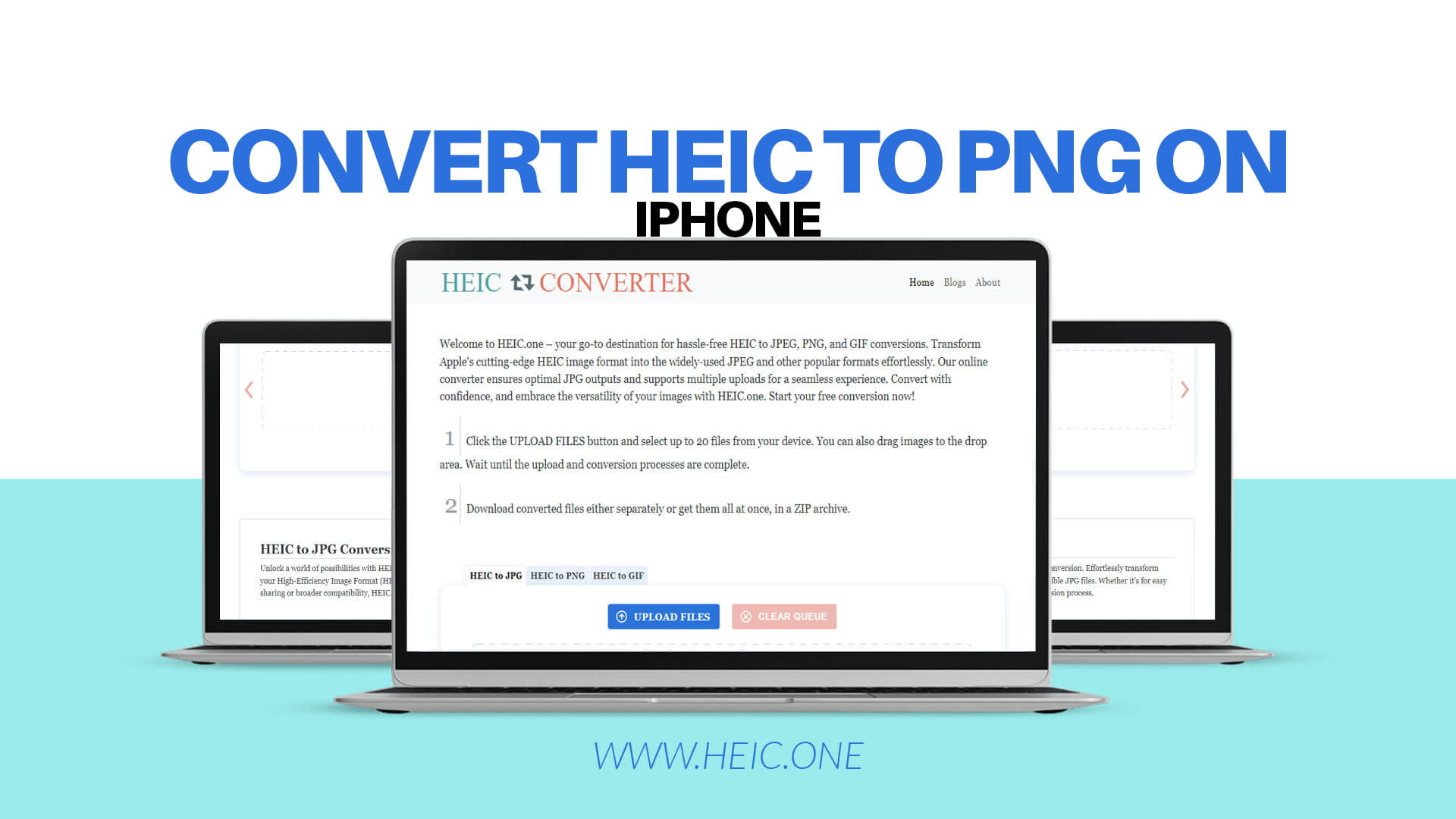
Heic.one is one such online tool that specializes in converting HEIC files to various formats including PNG. The website is designed with simplicity in mind. You do not need to create an account, download any software, or pay any fees. The entire conversion process happens through your Safari browser on your iPhone.
To use an online converter, open Safari on your iPhone and navigate to the conversion website. On the homepage, you will typically see a large button or area where you can upload your photos. Tap this button and your iPhone will ask for permission to access your photos. Grant this permission so the website can see your HEIC files.
Browse through your photo library and select the HEIC photos you want to convert. Many online tools allow you to select multiple photos at once, which saves a lot of time if you have many files to convert. After selecting your photos, they will begin uploading to the website. The upload time depends on how large your photos are and how fast your internet connection is.
Once the upload is complete, the website will show you format options. Select PNG as your desired output format. Some websites also let you adjust quality settings or resize your images, but for most purposes, the default settings work perfectly fine. After choosing PNG, click the convert button.
The conversion usually takes just a few seconds for each photo. When the conversion is finished, the website will provide download buttons for your converted PNG files. Tap the download button for each photo. Your iPhone will save the PNG files to your Downloads folder or ask you where you want to save them.
One important thing to remember about online conversion tools is privacy. Reputable websites like Heic.one take security seriously and delete your photos from their servers shortly after conversion. However, you should avoid uploading sensitive or private photos to any online service. For personal family photos and general pictures, online converters are perfectly safe and convenient.
The App Store contains numerous apps designed specifically for converting HEIC files to other formats. These apps offer more features and flexibility than the built-in iPhone options. While some apps require payment, many excellent free options are available that work wonderfully for converting HEIC to PNG.
To find a conversion app, open the App Store on your iPhone and search for terms like HEIC converter or HEIC to PNG. You will see dozens of results. Look at the app ratings and read a few reviews to find one that other users recommend. Pay attention to reviews that mention ease of use and whether the app works well for PNG conversion specifically.
After choosing an app, tap the Get button to download and install it. Once installed, open the app and you will typically be greeted with a welcome screen or quick tutorial. Most conversion apps have a very straightforward interface. The main screen usually shows a button to import photos or select files to convert.
Tap the import or select button and the app will ask for permission to access your photos. Grant this permission. You will then see your photo library where you can select which HEIC photos you want to convert. Select one photo or multiple photos depending on your needs.
After selecting photos, the app will show you format options. Choose PNG from the list of available formats. Some apps also let you adjust the image quality, resolution, or other settings. For most purposes, keeping the default settings is fine. Then tap the convert button and the app will process your photos.
The conversion happens directly on your iPhone, so you do not need an internet connection. This is a nice advantage over online tools if you are somewhere without wifi or cellular data. The conversion speed depends on how many photos you selected and how powerful your iPhone is, but it usually takes just a few seconds per photo.
After conversion, the app will save your PNG files. Different apps save files in different places. Some save directly to your Photos app, others save to the Files app, and some create their own folder within the app. Check the app settings or help section to understand where your converted files are stored.
This method is less known but incredibly simple for converting just one or two photos quickly. When you email a photo from your iPhone, the device automatically converts HEIC files to JPEG. While this does not give you PNG directly, you can use a similar technique with some email services that offer format options.
Open your Photos app and select the HEIC photo you want to convert. Tap the share button and choose Mail from the sharing options. Your iPhone will open a new email with the photo attached. Before sending the email, you might notice the photo has already been converted to a more compatible format.
While this method typically converts to JPEG rather than PNG, some email apps and services provide format selection options. Additionally, you can email the converted JPEG to yourself, download it, and then use an online tool or app to convert from JPEG to PNG if PNG is specifically required.
This method works best when you need to quickly share a photo with someone and just want it to be compatible. It is not the most efficient method for converting many photos or for getting PNG files specifically, but it is worth knowing as a quick option.
When converting HEIC to PNG, understanding file sizes can help you make better decisions about storage and sharing. HEIC files are quite small because Apple designed them for efficiency. A typical iPhone photo in HEIC format might be around one to three megabytes in size.
When you convert that same photo to PNG, the file size will increase significantly. The PNG version might be three to ten megabytes or even larger depending on the photo complexity. This happens because PNG uses lossless compression, which preserves all the image data without any shortcuts.
The increased file size does not mean the PNG photo looks better than the HEIC photo. Both will look essentially identical when you view them on your screen. The quality difference is so minimal that your eyes cannot detect it in normal viewing. The larger file size simply means the PNG stores the image data in a different way.
For most everyday uses, the larger file size of PNG is not a problem. Modern phones, computers, and websites can handle PNG files without any issues. However, if you plan to email many photos or if you have limited storage space, you might want to consider JPEG instead of PNG for regular photos. Save PNG for images where you need transparency or absolute quality preservation.
Sometimes things do not go perfectly when converting HEIC to PNG. Understanding common problems and their solutions can save you frustration and time. Most issues have simple fixes that do not require technical knowledge.
One common problem is that the converted photo appears rotated incorrectly. This happens because HEIC files store rotation information differently than PNG files. If your converted PNG photo is sideways or upside down, you can easily fix this in your Photos app. Open the photo, tap Edit, and use the rotate button to turn the image the right way. Then save the corrected photo.
Another issue some people encounter is that their converted photos look slightly different in color. This usually happens because different formats use different color profiles. The difference is typically very subtle and most people never notice it. If color accuracy is critical for your work, you might want to use professional photo editing software instead of quick conversion tools.
Sometimes an online conversion tool might fail to upload your photos or the conversion might get stuck. This usually happens due to internet connection problems. Try switching from wifi to cellular data or vice versa. If that does not work, wait a few minutes and try again. You can also try a different conversion website.
If an app crashes during conversion, make sure you have enough free storage space on your iPhone. Photo conversion requires temporary storage space to process the files. Delete some unused apps or photos to free up space, then try the conversion again.
Occasionally, you might find that your converted PNG file is not saving to the location you expected. Check your iPhone Files app and look in the Downloads folder, the Recently Deleted folder, and the app-specific folders. The file is usually somewhere on your device even if it is not immediately visible.
Developing good habits around photo conversion can make the process smoother and help you avoid problems. These best practices are easy to follow and will save you time in the long run.
First, make backups of your important photos before converting them. While conversion is usually safe and does not harm your original photos, it is always smart to have backups. You can use iCloud Photos, Google Photos, or simply copy your important photos to your computer. This way, if anything goes wrong during conversion, your precious memories are still safe.
Second, organize your photos before starting batch conversions. Create albums in your Photos app for the images you want to convert. This makes it much easier to select the right photos when using conversion tools. You will not have to scroll through thousands of random photos looking for the specific ones you need.
Third, check your converted photos after the process completes. Open a few of the PNG files and make sure they look correct. Check that they are not rotated wrong, that the colors look normal, and that no parts of the image are cut off. Finding problems early means you can re-convert if needed.
Fourth, delete duplicate files after conversion to save storage space. If you converted HEIC to PNG and now have both versions of each photo, decide which version you want to keep. For most photos, you only need one copy. Keep the HEIC version if storage space matters to you, or keep the PNG version if compatibility is more important.
Fifth, rename your converted files with descriptive names. Instead of keeping default names like IMG_1234.png, rename important photos with meaningful names like Birthday_Party_2025.png or Vacation_Beach_Photo.png. This makes finding specific photos much easier later.
Knowing when PNG is the best choice helps you make smart decisions about your photo formats. While PNG works for any photo, it shines in specific situations where its special features really matter.
Use PNG when you need transparent backgrounds. If you are creating graphics for a website, designing a logo, or working on any project that needs see-through areas, PNG is the only common format that supports this. JPEG always fills transparent areas with a solid color, usually white, which ruins the effect.
Use PNG for images with text or sharp edges. Screenshots of your phone screen, photos of documents, pictures of signs, or any image containing words should be saved as PNG. The format keeps text looking crisp and easy to read. JPEG can make text look fuzzy, especially if the photo is resized or edited.
Use PNG when you plan to edit the photo multiple times. Every time you edit and save a JPEG, it loses a tiny bit of quality. This is called generation loss. After many edits, the photo can start looking noticeably worse. PNG does not have this problem because it uses lossless compression. You can edit and save a PNG hundreds of times without any quality loss.
Use PNG for graphics and illustrations. If you create digital art, charts, diagrams, or infographics on your iPhone, save them as PNG. The format handles areas of solid color very well and keeps lines and shapes looking perfect. JPEG can create unwanted artifacts around edges in graphics.
Do not use PNG for regular photographs if file size matters. A typical photo from your iPhone camera works perfectly fine as JPEG. The quality difference is invisible to your eyes, but the file size savings are significant. Save PNG for special cases where you actually need its unique features.
When converting your photos, especially using online tools, privacy should always be on your mind. Your photos often contain personal information and memories that you want to keep private. Understanding how to protect your privacy during conversion is important.
Reputable online conversion services like Heic.one take user privacy seriously. These services typically process your photos and then automatically delete them from their servers after a short time. However, you should still be cautious about what you upload. Avoid uploading photos containing sensitive information such as credit card numbers, passwords, personal documents, or anything you would not want others to see.
Read the privacy policy of any online conversion tool before using it. Good services clearly explain what they do with your photos and how long they keep them. If a website does not have a clear privacy policy, consider using a different service.
Using apps that convert photos directly on your iPhone is more private than online tools. The conversion happens entirely on your device, and your photos never leave your phone. This makes apps a better choice for converting sensitive or private photos.
Be aware of what information is stored in your photo files. Photos contain metadata, which is hidden information about when and where the photo was taken. This metadata usually transfers to the converted file. If you want to remove location data or other metadata before sharing photos, use your iPhone Photos app to remove this information before conversion.
Never use public wifi networks when uploading photos to online conversion services. Public wifi in coffee shops, airports, or hotels is not secure. Someone with technical knowledge could potentially intercept your photos while they upload. Use your cellular data or a secure private wifi network instead.
Different situations require different approaches to photo conversion. Understanding these scenarios helps you choose the best method and settings for your specific needs.
For sharing on social media, PNG works great and most platforms support it perfectly. However, social media sites often compress and resize photos anyway, so the benefits of PNG over JPEG are minimal for this purpose. The extra file size of PNG does not really give you any advantages on Instagram, Facebook, or Twitter.
For professional use such as business presentations or client work, PNG is often the better choice. The format signals attention to quality and ensures your images look their best on any screen. If you are sending photos to a client or including them in a business document, the larger file size is worth the professional appearance.
For printing photos, the format matters less than the resolution and overall quality. Both PNG and JPEG work fine for printing. The most important factor is that your original photo has enough pixels for the print size you want. Conversion does not add pixels or improve quality, so start with the highest quality photo possible.
For archiving and long-term storage, PNG offers advantages because it does not lose quality over time. If you are creating a digital archive of important photos, converting to PNG and storing them on a hard drive or cloud service ensures they stay perfect for decades. JPEG files can degrade slightly each time they are opened and saved by certain programs.
For website use, consider your audience and purpose. PNG works well for website images, especially for graphics and images with text. However, large PNG files can slow down your website loading speed. Finding the right balance between quality and file size is important for web use.
Understanding where photo formats are heading helps you make better long-term decisions about how you handle your iPhone photos. The technology world is always evolving, and photo formats are no exception.
HEIC is becoming more widely supported as time goes on. Many Android phones now support HEIC, and Windows 10 and 11 can open HEIC files with a free codec. As more devices and platforms add HEIC support, the need for conversion will gradually decrease. However, we are still years away from HEIC being universally supported everywhere.
Apple is likely to continue using HEIC as the default format on iPhones. The storage space savings are too valuable to abandon, especially as phone cameras continue to improve and create larger files. Future iPhones might use even more advanced formats that offer better compression than HEIC.
PNG will remain important for specific uses like graphics, transparency, and lossless image storage. While it might never be the default format for camera photos, PNG fills important niches that other formats cannot match. Learning to convert HEIC to PNG ensures you can handle any situation that requires PNG format.
New photo formats are being developed that aim to be both highly compressed and universally supported. AVIF is one such format that offers better compression than both HEIC and JPEG. As these new formats mature, they might eventually replace both HEIC and JPEG, but this transition will take many years.
After reading about all these different methods and considerations, you might wonder which approach is best for your situation. The answer depends on your specific needs and how you use your iPhone photos.
If you rarely have compatibility problems and mostly share photos with other iPhone users, you might not need to convert at all. Just keep using HEIC and enjoy the storage space savings. Only convert when you encounter a specific situation that requires PNG.
If you frequently share photos with Android users or upload to websites that do not support HEIC, changing your camera settings to Most Compatible mode makes sense. This prevents problems before they happen and eliminates the need for regular conversion.
If you only occasionally need to convert a photo, using the built-in sharing features of your Photos app is the easiest approach. This method requires no extra apps or websites and works well for one-off conversions.
If you regularly need to convert many photos at once, investing time in finding a good conversion app or bookmarking a reliable online tool is worthwhile. Having a favorite conversion method ready saves time and frustration when you need it.
Remember that you can use different methods for different situations. There is no rule saying you must stick to only one conversion approach. Use whatever method is most convenient for the specific task at hand.
Converting HEIC to PNG on your iPhone is a valuable skill that solves many common photo compatibility problems. Whether you choose to use built-in iPhone features, online conversion tools like Heic.one, or dedicated apps, you now have the knowledge to handle any HEIC conversion situation.
The most important thing to remember is that you have options. You are not stuck with HEIC if it causes problems for you. Apple provides built-in solutions, and the wider technology community has created numerous tools to help. Converting photos should be simple and stress-free, not a source of frustration.
As you work with your iPhone photos, develop habits that make sense for your lifestyle. Maybe you prefer preventing the problem by shooting in compatible formats from the start. Maybe you like keeping photos in HEIC for storage efficiency and converting only when necessary. Either approach works perfectly fine.
The world of digital photography continues to evolve. New formats emerge, old formats fade away, and compatibility improves over time. By understanding how to convert between formats, you ensure that your precious photos remain accessible and usable no matter what changes come in the future.
Your iPhone is an incredibly powerful camera that creates beautiful images. Do not let format compatibility issues prevent you from fully enjoying and sharing those images. With the methods and knowledge you have learned, you can confidently handle any HEIC to PNG conversion situation that comes your way.
Take some time to try out different conversion methods and see which ones feel most comfortable to you. Experiment with online tools, explore apps in the App Store, and practice using the built-in iPhone features. The more familiar you become with these tools, the easier and faster conversion becomes.
Most importantly, keep taking photos and capturing the moments that matter to you. Whether those photos end up as HEIC, PNG, JPEG, or any other format, what really matters is the memories and experiences they represent. Format conversion is just a simple technical step that helps you share those precious moments with the people who matter most.