You just took a bunch of beautiful photos on your iPhone or iPad. The colors are vivid, the details are sharp, and you cannot wait to share them with friends, upload them to your website, or use them in a project. But when you transfer those photos to your Windows computer, send them to a colleague, or try to upload them to a platform, something goes wrong. The images will not open. Nobody can view them. And you are left wondering what happened.
What happened is simple: your Apple device saved those photos in HEIC format, and the rest of the world has not fully caught up yet.
This is one of the most common and frustrating digital experiences for iPhone and iPad users today. The good news is that the fix is equally simple. You just need to convert your HEIC images to JPG, PNG, or another widely supported format — and you can do it completely free, directly in your browser, without downloading a single thing.
That is exactly what HEIC.one is built for. In this article, you will learn everything you need to know about HEIC files, why they cause compatibility problems, why JPG remains the world's most universal image format, and how to convert your images quickly and effortlessly using HEIC.one. By the time you finish reading, you will have a full understanding of the subject and a reliable tool to solve the problem every time it comes up.
HEIC stands for High Efficiency Image Container. It is the file format that Apple introduced as the default image format for iPhones and iPads starting with iOS 11 in 2017. If you have an iPhone 7 or newer running iOS 11 or later, your camera is almost certainly saving your photos as HEIC files by default.
HEIC is based on the HEIF standard — High Efficiency Image Format — which was developed by the Moving Picture Experts Group, the same organization behind the widely used MPEG video standards. Apple adopted HEIC because it offered a significant improvement over the older JPG format in terms of efficiency.
The core advantage of HEIC over JPG is file size. A HEIC image typically takes up about half the storage space of an equivalent JPG image while maintaining the same or better visual quality. For a smartphone that stores thousands of photos over its lifetime, this difference in file size is genuinely significant. It means more photos can be stored on the same device, and photo libraries take up less iCloud storage space.
HEIC also supports a wider range of colors and deeper color information than traditional JPG. This is part of why photos taken on modern iPhones look so rich and detailed — the HEIC format can capture and store more visual information than older formats allow.
On top of that, HEIC supports transparency, depth maps for portrait-mode photos, image sequences for Live Photos, and 16-bit color depth. In almost every technical measurement, HEIC is a more advanced and capable format than JPG.
So why does it cause so many problems? The answer lies in compatibility.
Despite its technical superiority, HEIC has one significant weakness: it is not universally supported. JPG has been around since the early 1990s and has had decades to become embedded in every device, operating system, software application, and online platform on the planet. HEIC, which only became mainstream after 2017, has not had that time.
Here are the most common situations where HEIC compatibility issues arise.
Windows computers. Windows 10 and Windows 11 do not natively support HEIC files in most configurations. If you transfer HEIC photos from your iPhone to a Windows PC, you will often see a generic icon instead of an image preview, and double-clicking the file will either open an error message or prompt you to download a codec from the Microsoft Store. While that codec is available, many users find it confusing or simply do not want to install additional software just to view a photo.
Android devices. Android smartphones do not support HEIC format natively. If you send a HEIC image to a friend with an Android phone, they may not be able to open it at all, or they will see a broken image icon. In a world where iPhone and Android users frequently share images with each other, this is a very real and very common problem.
Social media platforms. Many social media platforms either do not accept HEIC files or automatically convert them during upload in ways that can reduce quality or cause unexpected changes to the image. Facebook, Instagram, Twitter, and LinkedIn all work most reliably with JPG or PNG files. Uploading a properly converted JPG gives you more control over how your image looks once posted.
Email and messaging apps. Some email clients and messaging applications handle HEIC files inconsistently. The recipient may see the image perfectly, or they may see nothing at all, depending on their device and email client. Converting to JPG before attaching an image to an email eliminates this uncertainty entirely.
Document and design software. Microsoft Office applications like Word, PowerPoint, and Excel have limited or no native support for HEIC. If you want to insert a photo into a document or presentation, converting it to JPG first ensures it will display correctly regardless of which version of Office the recipient uses.
Websites and content management systems. If you run a website or blog and want to upload photos, many content management systems — including older versions of WordPress — do not natively handle HEIC images. Even when they do, JPG and WebP remain better choices for web use because of their wide browser support and well-understood compression characteristics.
Online services and apps. Many third-party apps, from graphic design platforms to e-commerce systems to government form portals, accept JPG and PNG without question but may reject HEIC files or handle them unpredictably.
In short, the rest of the world runs on JPG. And until HEIC achieves the same universal adoption — which may still be years away — converting your HEIC images to JPG when needed is the practical, effective solution.
JPG has been around for over thirty years and shows no signs of losing its position as the world's most widely used image format. Understanding why JPG is so dominant helps explain why converting HEIC to JPG is such an effective solution to compatibility problems.
Universal device support. There is virtually no digital device in the world that cannot open a JPG file. From the oldest digital cameras to the newest smartphones, from budget Android tablets to high-end professional monitors, every device that displays images supports JPG. When you convert a HEIC file to JPG, you instantly make it accessible to anyone in the world.
Universal software support. Every image viewer, photo editor, document application, and web browser supports JPG natively. Microsoft Paint, Adobe Photoshop, Google Photos, Apple Preview, GIMP — it does not matter which software someone uses. If it can display images at all, it can display JPG.
Universal platform support. Every social media platform, website, content management system, cloud storage service, and online marketplace accepts JPG without any issues. JPG is the de facto standard for sharing images across the internet.
Excellent quality-to-size ratio. While JPG uses lossy compression — meaning some image data is discarded during compression — the loss is carefully managed to preserve visual quality at a level that is invisible or nearly invisible to the human eye. For sharing, posting, printing, and everyday use, JPG quality is more than sufficient.
Predictable behavior. Because JPG is so well-established, its behavior across different platforms and devices is extremely predictable. When you share a JPG, you know with confidence how it will look on the other end. There are no surprises, no compatibility guesses, and no format-related headaches.
This is precisely why converting from HEIC to JPG is the right move for practically every real-world use case outside of Apple's own ecosystem.
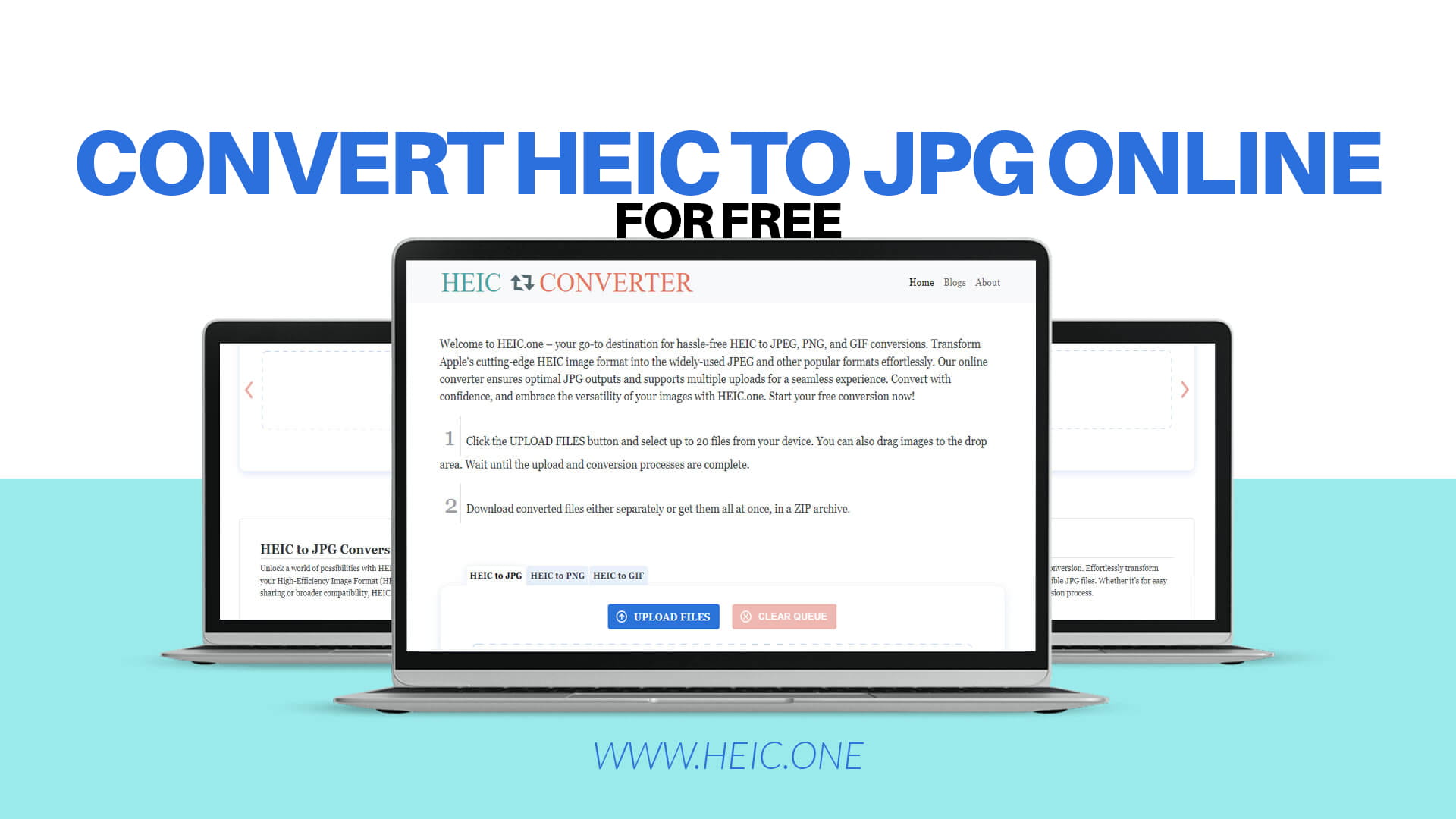
HEIC.one is a dedicated online platform built specifically for converting HEIC images to JPEG, PNG, and GIF formats. It was created to give iPhone and iPad users a simple, fast, and completely free way to make their photos compatible with the wider digital world — without needing to install any software, create any accounts, or pay any fees.
The platform is straightforward and focused. Unlike general-purpose file conversion websites that try to do everything at once, HEIC.one is designed specifically around the HEIC conversion need. This focus means the tool is optimized for exactly this task, delivering reliable, high-quality conversions every single time.
Some of the defining qualities of HEIC.one that make it stand out include its clean, easy-to-understand interface that anyone can use without any technical background, its support for multiple file uploads so you can convert a whole batch of photos in a single session, its delivery of optimal JPG output that preserves the visual quality of your original HEIC images, and its completely free access with no hidden fees, no premium tiers required for basic use, and no watermarks added to your converted images.
Whether you have one HEIC photo or hundreds of them, HEIC.one handles the job quickly and cleanly.
The conversion process is genuinely simple. You do not need any technical knowledge, any prior experience with image editing, or any special equipment. Here is exactly how it works from start to finish.
Step 1: Open HEIC.one in your browser. Visit the platform using any browser on any device. It works on Windows, Mac, Linux, Chromebook, iPhone, Android, and any other device with a modern web browser. There is nothing to install and no account to create.
Step 2: Upload your HEIC files. You can upload your images in several ways. You can drag and drop them directly onto the upload area on the page, click to browse your device storage and select them manually, or import them from cloud storage. One of the most convenient features is the ability to upload multiple HEIC files at the same time, so you can convert an entire batch of photos in a single operation rather than doing them one by one.
Step 3: Select your output format. HEIC.one gives you the choice of converting to JPEG, PNG, or GIF. For most use cases, JPEG is the right choice because of its universal compatibility and excellent quality. PNG is the better choice when you need to preserve transparency or work with graphics and illustrations. GIF is useful for creating simple animations or working with platforms that still rely on this older format.
Step 4: Start the conversion. Click the convert button. The platform processes your files quickly and efficiently. The conversion happens on HEIC.one's servers, so your device does not need to do any heavy processing. Even if you are on an older or less powerful device, the conversion will complete at full speed.
Step 5: Download your converted images. Once the conversion is complete, your converted files are ready to download. Click the download link and your JPG, PNG, or GIF files are saved to your device — clean, clear, high quality, and completely free of any watermarks.
From the moment you open the browser to the moment you have your converted files ready to use, the entire process can take under two minutes for most batches of photos. It is genuinely that fast and that easy.
One of the great advantages of HEIC.one being a web-based tool is that it works on any device. Let us look at some of the most common situations where people need to convert HEIC files and how HEIC.one fits into each scenario.
On a Windows PC, after transferring iPhone photos. This is one of the most common use cases. You connect your iPhone to your computer, transfer your photos, and suddenly realize Windows cannot display them properly. Instead of searching for codec downloads or workarounds, simply open HEIC.one, upload the photos, and download JPG versions that Windows handles perfectly.
On a Mac, when sharing with non-Apple users. Mac computers handle HEIC files natively through macOS, so you may not notice any issues on your own machine. But when you share those photos with Windows users, Android users, or upload them to platforms, compatibility problems emerge. Converting to JPG before sharing ensures the recipient can view your photos without any issues, regardless of their device.
On an iPhone, when you need to share immediately. If you need to convert a photo directly on your iPhone — for example, before attaching it to an email or sending it to someone who cannot open HEIC — you can open HEIC.one in Safari, upload the photo, and download the JPG version directly to your camera roll in minutes.
In a professional or workplace context. If you are preparing photos for a client, a publication, a presentation, or a website, having your images in universally compatible JPG format is simply the professional standard. HEIC.one makes this conversion fast enough to integrate naturally into any professional workflow.
When preparing images for print. Print services and graphic design workflows generally work with JPG or TIFF files. If you are sending photos to a print shop, ordering photo prints online, or preparing images for a printed publication, converting your HEIC files to JPG first ensures the service can process your images without any issues.
While JPG is the right choice for most HEIC conversions, there are specific situations where converting to PNG is the better decision. Understanding the difference helps you choose the right format for each use case.
The key advantage of PNG over JPG is that PNG uses lossless compression. This means no image data is discarded during compression, preserving every detail of the original image perfectly. For photographs that will go through multiple rounds of editing and re-saving, PNG preserves quality better over time.
PNG also supports transparent backgrounds, which JPG does not. If you are working with an image that has or needs a transparent background — such as a logo, an icon, or a graphic element for a website — PNG is the correct choice.
For website use, PNG is preferred for graphics, logos, icons, screenshots, and images with flat colors or text overlays. JPG is preferred for photographs. Knowing this distinction helps you choose correctly when converting from HEIC.
For everyday photo sharing, social media, email, and general use, JPG remains the practical choice because of its smaller file size and universal compatibility. But for creative projects, design work, and situations where transparency or maximum quality is important, converting your HEIC files to PNG is a smart decision — and HEIC.one handles both conversions with equal ease.
The option to convert HEIC to GIF might seem unusual at first, since GIF is primarily associated with short looping animations rather than still photographs. But there are specific use cases where this conversion is genuinely useful.
GIF format is widely supported across platforms that may have inconsistent support for other formats. Some older systems, basic web platforms, and certain messaging applications handle GIF more reliably than JPG or PNG. Converting an image to GIF makes it accessible in these environments.
For users who want to create simple animated content using sequences of photos — for example, a short animation made from a series of HEIC images — converting to GIF and then assembling the animation is one approach that HEIC.one's format flexibility supports.
It is worth noting that GIF supports only 256 colors, which makes it unsuitable for high-quality photographs. For photographic content, JPG or PNG are always the better choices. But for simple graphics, diagrams, or specific platform requirements, the option to convert HEIC to GIF gives users additional flexibility.
One of the features that makes HEIC.one genuinely practical rather than just theoretically useful is its support for multiple file uploads. This might sound like a small detail, but in practice it makes a significant difference.
Think about what typically happens when you transfer photos from your iPhone. You do not transfer one image — you transfer dozens, sometimes hundreds. A weekend trip might produce two hundred photos. A family gathering might generate a hundred. A professional photoshoot could involve thousands of HEIC files.
If a converter only allows you to upload one file at a time, converting a large batch of photos becomes an extremely tedious, time-consuming process. You upload one file, wait for conversion, download it, go back, upload the next file, and repeat — potentially hundreds of times.
With multiple upload support, you select all your HEIC files at once, upload them in a single operation, and download all your converted JPG files together. What would have taken an hour of repetitive clicking takes a few minutes of actual time. This is the difference between a tool that is theoretically helpful and one that is practically useful in real workflows.
A free tool that produces low-quality output is not really a useful tool. One of the most important qualities of HEIC.one is its commitment to delivering optimal output quality in every conversion.
HEIC images are high quality by design — the format was specifically engineered to preserve visual fidelity efficiently. Converting to JPG involves some compression, which is inherent to the JPG format. However, HEIC.one is configured to find the optimal balance between output file size and visual quality, preserving the richness, sharpness, and color accuracy of your original HEIC images as faithfully as possible.
The result is a JPG file that looks excellent — true to the original photo, suitable for printing, sharing, posting, and professional use. You will not notice a meaningful drop in quality between your original HEIC image and the JPG produced by HEIC.one.
This commitment to output quality is what separates a professional-grade conversion tool from a basic one. HEIC.one takes your photos seriously and treats them accordingly.
When you upload personal photos to any online platform, privacy is a completely reasonable concern. Your photos may include family members, children, personal moments, travel memories, or professionally sensitive content. You have a right to know what happens to your images after you upload them.
HEIC.one handles uploaded files with full respect for your privacy. Files are processed to complete the conversion you requested and are then deleted from the servers automatically after a short period. Your images are not stored for any longer than necessary, not shared with any third parties, and not used for any purpose other than completing your conversion.
The tool is built for conversion, not data collection. You upload your images, get your converted files, and your originals are removed. It is a straightforward, privacy-respecting process that you can trust with your personal photos.
A few simple practices will help you consistently get excellent results when converting your HEIC files.
Transfer photos at full quality. When transferring photos from your iPhone to a computer, make sure you are transferring the full-resolution originals rather than compressed versions. Some transfer methods automatically compress images, which reduces quality before conversion even begins. Using a direct USB connection or iCloud Photos with original quality settings ensures you start with the best possible source files.
Convert before editing. If you plan to edit your photos, converting from HEIC to JPG or PNG before you start editing is generally the better approach. Working with a format that your editing software fully supports gives you a smoother, more reliable editing experience.
Choose the right output format for your purpose. JPG for sharing, social media, email, and everyday use. PNG for design work, graphics, and situations requiring transparency. GIF for specific platform requirements or simple animation needs. Taking thirty seconds to think about where the converted image will be used helps you choose correctly every time.
Check your converted files before deleting originals. After conversion, open a few of the converted images to confirm the quality looks correct before removing the original HEIC files from your device. This simple habit prevents the rare but possible situation of discovering a conversion error after the original is already gone.
Convert in batches to save time. Rather than converting images one at a time as you need them, consider doing batch conversions of entire photo collections periodically. This approach is more efficient and ensures you always have compatible versions of your photos ready to use at a moment's notice.
Converting HEIC to JPG is a practical solution to a real compatibility problem that affects millions of iPhone users every day. But it also reflects a broader reality of modern digital life — we live in a world where different devices, platforms, and software programs use different standards, and navigating between them requires flexibility and the right tools.
Apple chose HEIC for very good reasons. The format genuinely is more efficient and in many ways more capable than JPG. As more platforms, operating systems, and applications add HEIC support over time, the compatibility gap will gradually close. Microsoft has been expanding Windows HEIC support. More web browsers are beginning to handle HEIC files. More online platforms are beginning to accept them.
But that transition will take time. In the meantime, having a fast, free, reliable converter like HEIC.one means the incompatibility problem never has to slow you down. You take your photos in whatever format your iPhone chooses, you convert the ones you need to share or use elsewhere, and you move on with your day.
It is a small workflow addition that eliminates a surprisingly large source of frustration.
If you use an iPhone or iPad, HEIC files are a daily reality. And as long as the rest of the digital world primarily runs on JPG and PNG, converting your HEIC images will remain an occasional but important task.
HEIC.one gives you everything you need to handle that task with zero fuss. It is fast, free, and focused entirely on doing one thing exceptionally well — converting your HEIC images into universally compatible JPEG, PNG, or GIF files that look great and work everywhere. Multiple file upload support means you can process entire photo collections in a single session. Optimal output quality means your photos look just as good after conversion as they did before. And the clean, straightforward interface means anyone can use it without any learning curve.
There are no watermarks on your converted images. No mandatory account creation. No confusing steps or hidden charges. Just your photos, converted, downloaded, and ready to use.
Whether you are sharing memories with family, preparing images for a professional project, uploading photos to a website, or just making sure your iPhone photos work on every device they need to work on, HEIC.one is the tool that makes it happen.
Visit HEIC.one today and start converting your HEIC images to JPG, PNG, or GIF completely free. It takes just a few clicks, the results are excellent, and you will never have to worry about HEIC compatibility problems slowing you down again.